LAZ2
LAZ2 PAR0
PAR0 RCL2
RCL2 PAR1
PAR1 MEX-W
MEX-W ARG-W
ARG-W ATM1
ATM1 DEP0
DEP0 ADO1
ADO1 HEE2
HEE2 CLB2
CLB2 TOR0
TOR0 GVFC0
GVFC0 FCP0
FCP0 Internacional2
 Botafogo0
 UAE
UAE NED
NED PAK
PAK ENG
ENG IND-W
IND-W ZIM-W
ZIM-W GMB
GMB LES
LES MOZ
MOZ ZMB
ZMB Inter Milan
 Fiorentina
 Churchill
 Punjab FC
 NGA
NGA UGA
UGA RIY2
RIY2 TAA1
TAA1 CHE0
CHE0 TOT2
TOT2 VAL1
VAL1 VIL2
VIL2 DOR1
DOR1 SGE0
SGE0 NZ-A135/3 (41 ov)
 IND-A113
 SYL
SYL KHU
KHU MYMS299/4 (87 ov)
 CHATT
CHATT DHA293/3 (84.1 ov)
 RAJ
RAJ RAN320/5 (80 ov)
 BAR
BAR DEN
DEN PNG
PNG NAM321/6
 IRE290 (47.3/50 ov, target 322)
 NZ180/5
 IND181/6 (19.5/20 ov, target 181)
 Mirassol1
 São Paulo1
 Vitória1
 Athletico-PR1
 Athletic
 Getafe
 C Palace
 Newcastle
 Hull
Hull Brentford
 Liverpool
 Brighton
 Man United
 Bournemouth
 Atalanta
 Frosinone
 NAP3
NAP3 ROMA3
ROMA3 KHO0
KHO0 ETT3
ETT3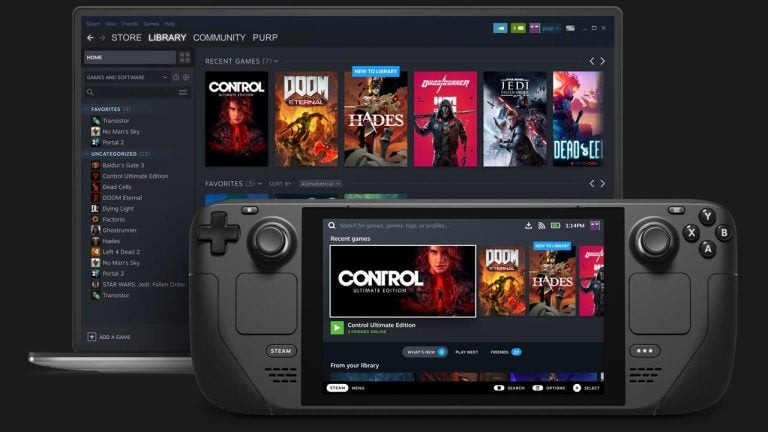
Steam Deck Storage Optimization: Before Valve launched the Steam Deck on February 25, 2022, portable PC gaming meant dealing with bulky Windows handhelds that had unpredictable battery life and cramped storage options.
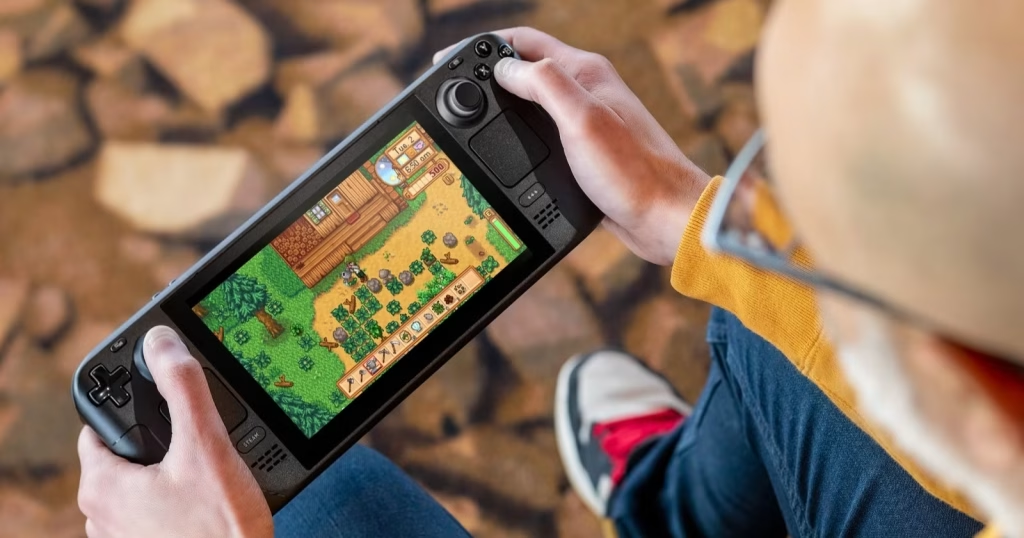
Early buyers faced a split ecosystem with a base 64GB eMMC model, along with faster 256GB NVMe SSD and 512GB NVMe SSD configurations. This changed on November 16, 2023, when the Steam Deck OLED model hit the market. It boasted a 7.4-inch display, a larger 50Whr battery, and bigger storage capacities. Suddenly, managing large modern game installs required more than just the default settings. Here’s how modern storage performance shapes the entire handheld experience.
Understanding Steam Deck Storage Optimization
Every Steam Deck model comes equipped with 16GB LPDDR5 RAM and a custom AMD APU (Zen 2 CPU + RDNA 2 GPU), known as the “Aerith” SoC. This hardware drives a sharp 7-inch display with a 1280×800 resolution and a 60Hz refresh rate, all powered by a 40Whr battery that offers 2–8 hours of gameplay, depending on the workload. Grasping the internal configurations helps pinpoint any bottlenecks.
| Storage Tier | Interface Type | Base Launch | Performance Profile |
|---|---|---|---|
| 64GB eMMC | eMMC 5.1 | $399 | Slower read speeds, higher load times |
| 256GB NVMe | PCIe Gen 3 x4 (2230) | Expected to be | Balanced speed for standard libraries |
| 512GB NVMe | PCIe Gen 3 x4 (2230) | $649 | Fast load times and ample cache space |
Overview of Internal vs. External Storage
Internal NVMe drives connect directly through PCIe lanes to maximize throughput. In contrast, external microSD cards rely on the built-in reader, which supports UHS-I speeds. This architectural difference affects how games stream assets. While internal drives load heavy assets instantly, microSD cards are better suited for indie titles or retro emulation that don’t require excessive read queues.
Recommended SSD Types for Upgrades
If you’re looking to upgrade internal storage, you’ll need a 2230 M.2 NVMe solid-state drive, as standard 2280 desktop drives won’t fit inside the chassis. Major hardware retailers warn that thermal throttling can happen if users opt for high-wattage drives that exceed factory power limits. Choosing a single-sided 2230 drive from trusted manufacturers ensures proper clearance near the fan assembly.
Techniques for Enhancing Storage Performance
To optimize storage, you need to balance shader caches, trim unused files, and configure SteamOS smartly to handle background operations. Without proper maintenance, shader cache data can quickly take up tens of gigabytes on smaller drives. Here’s what players should tweak to keep read-write cycles efficient.
Importance of Storage Speed in Gaming
Fast storage minimizes stuttering during open-world asset streaming, which directly affects frame pacing in demanding titles. According to industry hardware testing, swapping a slow eMMC drive for a fast NVMe solution can halve initial game launch times. This speed boost preserves battery life by cutting down on continuous disk access overhead.
Configuring SteamOS for Optimal Performance
SteamOS has built-in tools like TRIM scheduling that help maintain solid-state drive longevity and prevent write amplification over time. Users can clean up compatibility data for uninstalled games by going to the storage settings menu. This simple housekeeping prevents orphaned files from bogging down system responsiveness.
Managing Game Installations and Updates Efficiently
To manage local disk space, prioritize active titles on internal NVMe storage while moving secondary libraries to expandable media. Valve’s hardware documentation confirms that the device supports microSD cards up to UHS-I speeds, making removable storage perfect for large game libraries. Adjusting automatic update schedules can stop background downloads from interrupting your gaming sessions.
Utilizing Cloud Storage Solutions
Steam Cloud synchronization makes sure that save files stay secure across different gaming setups without cluttering local directories. Keeping local save caches minimal frees up valuable inodes on constrained filesystems. This cloud syncing also bridges desktop gaming with portable play effortlessly.
FAQs: Steam Deck Storage Optimization
What storage upgrades are compatible with Steam Deck?
The handheld accepts M.2 2230 NVMe internal solid-state drives and microSD cards that support UHS-I transfer speeds. Standard desktop 2280 drives are physically incompatible.
How can I monitor storage performance?
Players can enable the built-in performance overlay via the quick access menu to track resource utilization, frame rates, and hardware metrics in real-time.
What are the best practices for managing game files?
Regularly uninstall unused games, clear out old shader cache data through system settings, and offload indie titles to high-speed microSD cards.
Can I use an external SSD for improved performance?
Absolutely! Connecting an external portable SSD via the USB-C port offers fast read speeds, though it does compromise the true handheld portability of the device. Stay tuned for more on Steam Deck Storage Optimization.