BAN
BAN WI235/4 (70 ov)
 AFG
AFG ZIM326/5 (87 ov)
 GOA
GOA Bengaluru
 Hamburg
 Gladbach
 Venezia
 Udinese
 Toulouse
 Strasbourg
 Everton
 Coventry
 Sevilla
 Alavés
 NZ
NZ IND
IND Inter Kashi
 SC Delhi
 AZ1
AZ1 JUV2
JUV2 B040
B040 OLM1
OLM1 SLB3
SLB3 LECH1
LECH1 CEL1
CEL1 USG2
USG2 DMJIR290 & 134/5 (46 ov) (f/o)
 HYD-R519/8d
 KRBLS280 & 2/1 (2 ov)
 SRB241 & 388/5d
 FSLB259 & 54/1 (26 ov) (f/o)
 PRB503/4d
 LAHW234 & 40/4 (17 ov, target 412)
 FATA362 & 283
 ISB215 & 163/6 (51 ov)
 MUL327
 PCBXI151/8d
 SL223/7d & 121/6 (38 ov)
 ZIM-A
ZIM-A IRE-A420/9 (90 ov)
 MS-W
MS-W SS-W
SS-W MR-W
MR-W AS-W
AS-W BH-W
BH-W HH-W
HH-W UGA-W
UGA-W NAM-W
NAM-W KAY
KAY SPR
SPR TUSK
TUSK RHINO
RHINO MOUNT
MOUNT ROCKS
ROCKS WI-A123 (16.3/20 ov, target 220)
 LIONS219/7
 ST-W166 (19/20 ov, target 184)
 PS-W183/3
 WAR138/7 (20 ov)
 BOL138/5
 BIK83
BIK83 KAG86/1 (9.4/20 ov, target 84)
 JAB133/8 (20 ov, target 150)
 LUL149/8
 Leeds
Leeds Spurs
Spurs CEL3
CEL3 BES2
BES2 HBE0
HBE0 OFI2
OFI2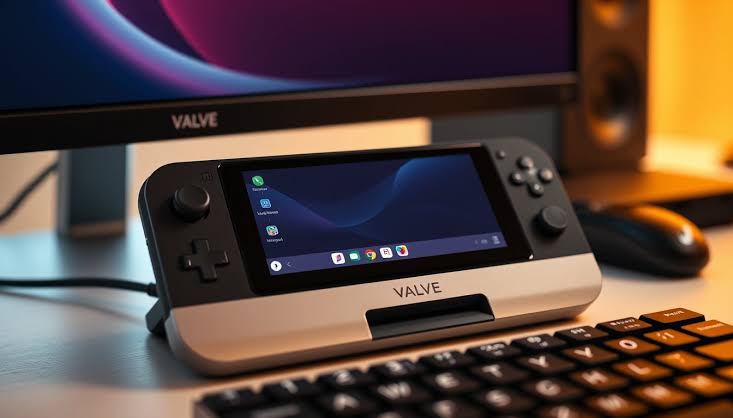
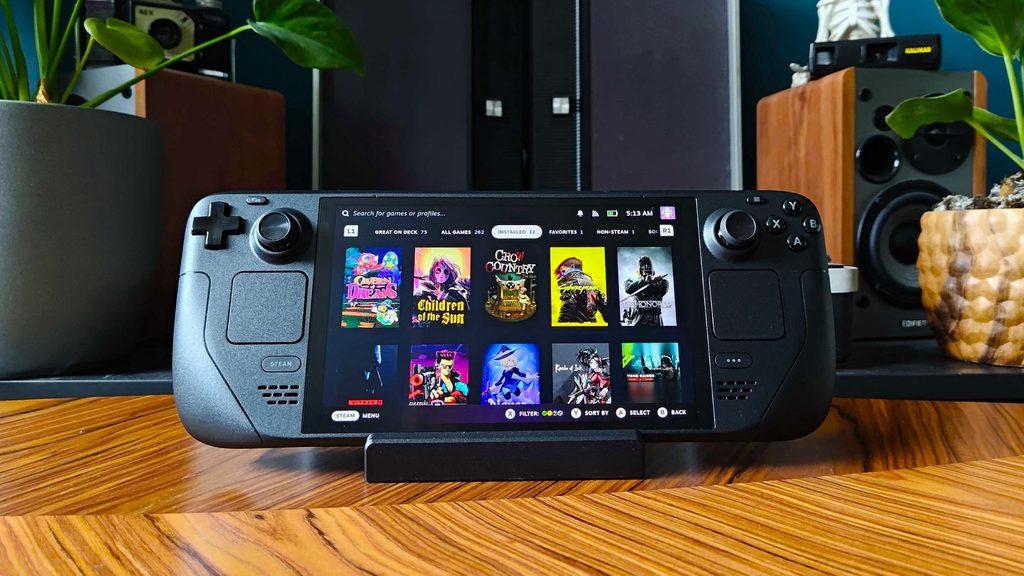
On November 16, 2023, Valve launched the Steam Deck OLED, turning a handheld PC into a living-room console, travel companion, and Linux-based gaming machine in one device. The system had been announced on November 9, 2023, with the 512GB model reportedly listed at a $549 launch
What Should You Do Before Turning It On?
Hold the Steam Deck OLED near a charger before starting the setup process. Valve’s handheld uses a 50Whr battery, and a fresh installation can involve system updates, controller firmware, shader downloads, and game patches that consume power quickly.
Connect to a reliable Wi-Fi network, keep the charger nearby, and avoid beginning the process during a journey unless the device already has sufficient charge. Insert a microSD card only after checking its capacity and speed Steam Deck OLED setup guide covers the wider first-boot process, while this checklist focuses on the decisions that affect daily use. > Setup rule: Update first, customise second, and download large games last.
What Are the Steam Deck OLED’s Key Specifications?
The Steam Deck OLED has a 7.4-inch HDR OLED display with a 1280 × 800 resolution and a maximum refresh rate of 90Hz. Its AMD-developed 6nm APU works with 16GB of LPDDR5 RAM running at 5500 MT/s, giving the handheld the hardware needed for PC games while keeping the interface responsive. These specifications should guide your display settings, storage planning, and performance expectations.
| Component | Steam Deck OLED detail |
|---|---|
| Display | 7.4-inch HDR OLED |
| Resolution | 1280 × 800 |
| Refresh rate | Up to 90Hz |
| Processor | AMD 6nm APU |
| Memory | 16GB LPDDR5 at 5500 MT/s |
Open Settings, then check for SteamOS updates before changing performance profiles. After the update, review display brightness, HDR behaviour, refresh rate, audio output, controller layout, and system language. A 90Hz panel does not mean every game will run at 90 frames per second, so use the refresh-rate option according to each game’s performance rather than leaving it at the highest setting automatically.
Which Settings Matter Most for Daily Gaming?
Enable a frame-rate limit when a game does not need maximum performance. A stable 40 or 60 frames per second can feel smoother than an unstable higher target, while a lower cap may reduce fan noise and battery drain. Steam’s per-game profiles let you preserve different settings for demanding PC releases, older titles, and emulation software.
Set the Performance Overlay Level temporarily while adjusting a game. The overlay can show frame rate, GPU and CPU load, temperature, and power information, helping you identify whether a title is limited by graphics performance or processor load. Turn it off when the configuration is complete, because a clean screen improves the handheld experience. Use Steam Cloud where supported, but do not treat it as the only backup. Export important save files for games that lack reliable cloud support, especially before changing opehandheld travel accessories is relevant when the device will spend time in airports, trains, or hotel rooms.
What Should You Install Next?
Start with the games you genuinely plan to play, then add tools gradually. Proton compatibility can vary by title, so check the game’s Steam page, community reports, and controller support before committing to a large download. Non-Steam launchers and desktop applications may require extra configuration, making them poor first tests for a new installation.
Set a storage routine from day one. Keep the internal drive for frequently played games and system files, move less-used titles to the microSD card, and uninstall games that have not been opened for months. The OLED accessory guide can also help when comparing cases, screen protection, and charging equipment, though compatibility must be checked carefully.
Steam Deck OLED Setup Checklist
- Complete SteamOS and firmware updates.
- Connect to stable Wi-Fi.
- Configure brightness, HDR, audio, and refresh rate.
- Test the controls in one verified game.
- Set a sensible frame-rate limit.
- Format and test the microSD card.
- Enable Steam Cloud where available.
- Check storage before downloading large games.
- Carry the official charger or a compatible USB-C charger.
The best setup is not the one with every option enabled. It is the one that lets the Steam Deck OLED boot quickly, control games reliably, preserve battery life, and keep enough storage available for the next download.
FAQs
Does the Steam Deck OLED support 90Hz gaming?
Yes. Its display supports a maximum refresh rate of 90Hz, but individual games may run below that limit depending on their performance demands. For more detail, see Gizmodo.
How much RAM does the Steam Deck OLED have?
The handheld has 16GB of LPDDR5 RAM ope
What processor powers the Steam Deck OLED?
The Steam Deck OLED uses an AMD-developed 6nm APU.
Should games be installed on the microSD card?
Less frequently played games can be installed on a microSD card, while regularly played or storage-sensitive titles may be better kept on internal storage. Set up the essentials first, then make the Steam Deck OLED yours one profile, game, and accessory at a time.
Was this article helpful?
Your feedback directly improves future articles on this site.