NED
NED OMA
OMA NZ
NZ IND
IND NAM
NAM IRE
IRE PAK
PAK SL
SL SA
SA AUS
AUS Abha
Abha Al Faisaly
 AFG
AFG ZIM
ZIM Sassuolo
 Lazio
Lazio AS Roma
 Cagliari
 SEV2
SEV2 OSA0
OSA0 PSG2
PSG2 LYON0
LYON0 MBSG1
MBSG1 CFC0
CFC0 Barcelona1
 Real Madrid2
 NZ-A317 & 187/9 (65 ov, target 313)
 IND-A113 & 516
 SYL575/4 (167.3 ov)
 KHU
KHU MYMS465/7d
 CHATT424/6 (121 ov)
 RAN402 & 5/0 (2.3 ov)
 BAR443/9d
 SIKM133/4 (44.1 ov)
 NAGA187
 JHK
JHK DELHI446/5 (121 ov)
 ODSA194
 SVCS13/0 (5 ov)
 BRODA307/6 (100 ov)
 J & K
J & K CHD494/2 (111 ov)
 HP
HP CGR96/4 (43 ov)
 AP231
AP231 HYD
HYD PNJB416/9 (120 ov)
 BAN
BAN WI
WI IND-W
IND-W ZIM-W
ZIM-W BIK
BIK CHR
CHR BRB149/5 (16.2/20 ov, target 148)
 MIS147
 MOW107/9
 TOK111/5 (18.4/20 ov, target 108)
 LUL88/3 (9.5/20 ov, target 88)
 SPR87
SPR87 Torino
 Como
Como GOA
GOA SC Delhi
 Milan
Milan Bologna
 Parma
Parma Udinese
 Venezia
 Inter Milan
 FLA3
FLA3 CAM2
CAM2
Over 75% of smartphone users deal with digital eye strain daily. This makes it crucial to optimize display settings for long-term eye health across mobile devices. Apple has integrated the core visual options into iOS, helping to combat this common issue. Many users often miss how hardware changes work alongside software-based accessibility settings to affect how screens feel. By understanding these elements, you can turn a regular smartphone screen into a more comfortable viewing experience for longer use.
iPhone Accessibility Settings: Understanding Accessibility Features
Importance of Accessibility in Technology
Accessibility tools are no longer just about helping those with physical disabilities—they’re crucial for everyone who uses screens daily. When we look at standard mobile interfaces, we often find that default brightness and contrast levels can be harsh on our eyes. By taking control of these settings, you can significantly reduce eye strain during long reading or navigation sessions.
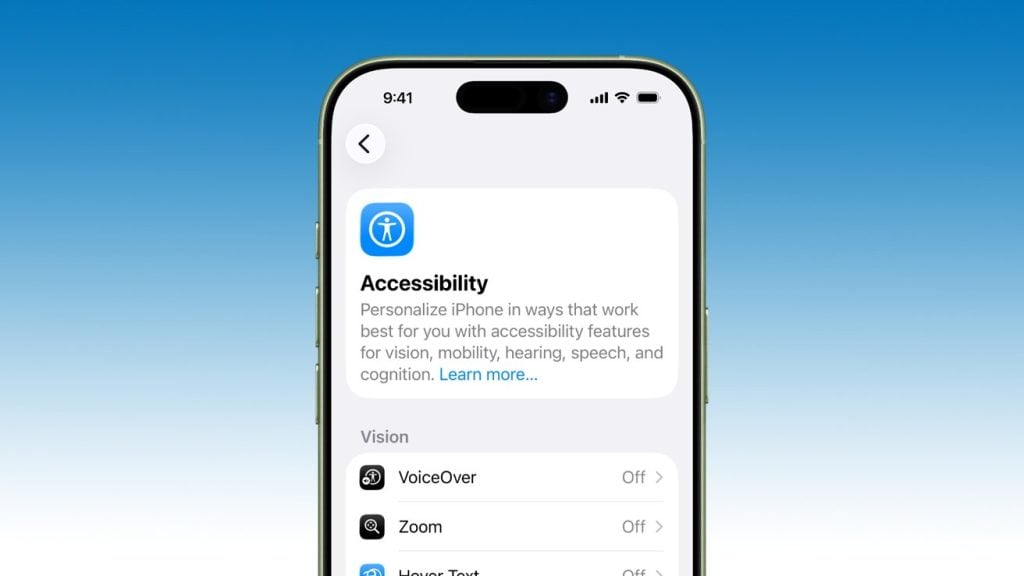
Overview of iPhone’s Accessibility Menu
Apple has gathered these important tools in the system preferences panel, giving you a lot of options for customizing how your device works. For example, features like AssistiveTouch have allowed for custom gesture shortcuts to minimize physical button use since iOS 5 in 2011. Today, that tradition continues with a wide range of options focused on visual comfort.
Configuring Visual Comfort Settings
Adjusting Display Settings for Comfort
The iPhone’s Display and Text Size menu includes five main visual options: Bold Text, Larger Text, Button Shapes, Increase Contrast, and Reduce Transparency. One standout feature, Reduce White Point, can lower maximum display brightness by up to 100% with a sliding scale. This adjustment helps tone down glare without turning your screen into a dull gray.
| Feature Name | System Path | Core Function |
|---|---|---|
| Display & Text Size | Settings > Accessibility | Controls bolding, text scaling, contrast, and white point. |
| Color Filters | Settings > Accessibility | Provides 5 filter options including Grayscale and tints. |
| Night Shift | Settings > Display & Brightness | Adjusts color temperature to reduce blue light exposure. |
Utilizing Color Filters for Visual Needs
Launched back in iOS 10 in 2016, the Color Filters feature provides five options: Grayscale, Red/Green Filter, Green/Red Filter, Blue/Yellow Filter, and Color Tint. These filters help users with color perception issues while also softening contrast for those who read at night.
Enabling VoiceOver for Enhanced Navigation
VoiceOver revolutionizes how users interact with dense text by reading elements aloud and providing touch feedback. While it mainly aids visually impaired users, enabling it can help everyone reduce eye strain during long document reviews.
Font Size and Bold Text Adjustments
The Larger Text feature allows for Dynamic Type scaling up to 310% of the default font size across supported apps. By combining this feature with the Bold Text toggle, you can eliminate squinting caused by thin, low-contrast type. Plus, display settings sync effortlessly across devices using the same Apple ID.
Screen Magnification Options
Hardware-level zoom tools let you magnify specific areas of the interface without messing up the layout. Using multi-finger double-tap gestures along with custom overlay windows ensures fine details stay clear across all your apps.
iPhone Accessibility Settings: Properly configuring these five visual tools can protect your eyes during daily smartphone use.
Related Articles
FAQs
What are accessibility features on the iPhone?
Accessibility features are built-in tools designed to assist users with physical, auditory, and visual challenges, while also providing ergonomic enhancements for everyday device use.
How can I adjust my iPhone’s display settings?
You can modify display settings by going to Settings > Accessibility > Display & Text Size, where you can change font weights, reduce white points, and adjust contrast.
What is VoiceOver and how does it work?
VoiceOver is a well-known screen reader that gives spoken feedback, allowing users to navigate their iOS device entirely through audio cues and specific touch gestures.
Are there specific settings for color blindness?
Yes, iOS offers dedicated Color Filters under accessibility settings, including Grayscale, Red/Green, Green/Red, Blue/Yellow, and Color Tint options to accommodate different visual needs.