NZ180/5
 IND56/2 (8.3/20 ov, target 181)
 NAM156/2 (32/50 ov)
 IRE
IRE AVL
AVL MNC
MNC RAY
RAY ELC
ELC GMB
GMB ZMB
ZMB NGA
NGA LES
LES CAG
CAG BOL
BOL COMO
COMO SAS
SAS FCA
FCA FCU
FCU KOE
KOE S04
S04 MOZ19
MOZ19 UGA23/0 (0.5/20 ov, target 20)
 Ipswich1
 Nottm Forest1
 Alavés1
 Málaga1
 Torino3
 Monza2
 WA
WA NSW371/8 (50 ov)
 DEN
DEN KUW
KUW KENYA
KENYA QAT
QAT SWD-W
SWD-W EPR-W
EPR-W TTN-W
TTN-W WPR-W
WPR-W NZ-A135/3 (41 ov)
 IND-A113
 DHA
DHA RAJ
RAJ MYMS
MYMS CHATT
CHATT RAN
RAN BAR
BAR SYL
SYL KHU
KHU MEX-W
MEX-W ARG-W
ARG-W UAE
UAE NED
NED PAK
PAK ENG
ENG IND-W
IND-W ZIM-W
ZIM-W AFG170/3 (34.3/50 ov, target 170)
 ZIM169
 CHE0
CHE0 DYI0
DYI0 CHO1
CHO1 QIN0
QIN0 HEN1
HEN1 BEI0
BEI0 LIA1
LIA1 ZHE0
ZHE0 QWC1
QWC1 YUN0
YUN0 SHX0
SHX0 Shanghai Shenh0
 TIG0
TIG0 SHP0
SHP0 WTT1
WTT1 SHT3
SHT3 M05
M05 SVW
SVW RBL
RBL ELV
ELV Brest1
 Nice2
Nice2 Stuttgart2
 Gladbach3
 Al Ahli4
 Al Khaleej1
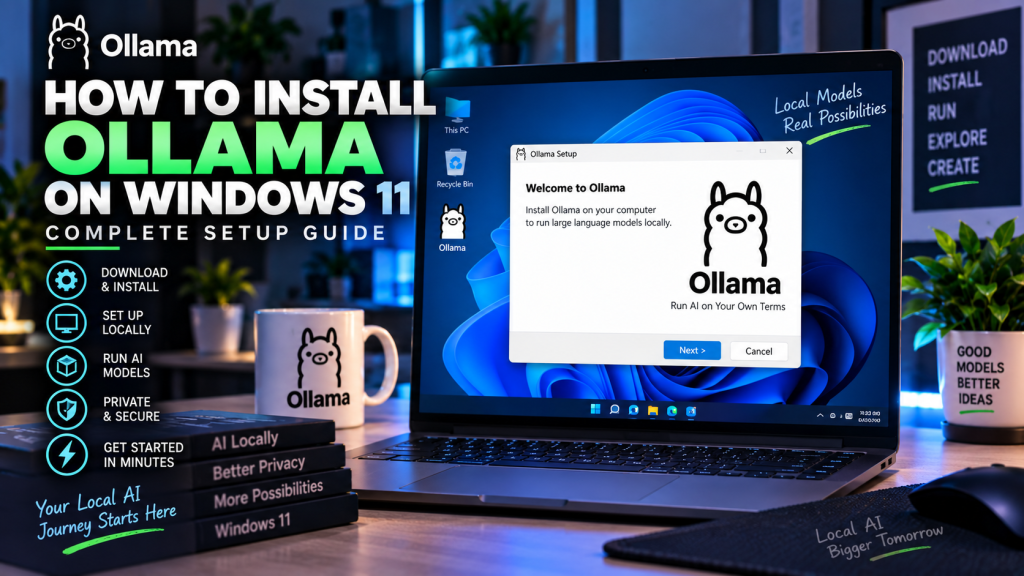
To install Ollama on Windows 11, download the installer and run it — it’s the easiest way to run open AI models like Llama, DeepSeek, and Qwen directly on your PC. This guide walks through the exact installation flow, verified step by step, so you know precisely what to expect.
System Requirements
- Windows 10 or later (Windows 11 recommended)
- 4GB+ VRAM minimum for small models; 8GB+ recommended for a smooth experience
- An NVIDIA GPU is automatically accelerated via CUDA; Ollama installs CUDA v12 and v13 libraries during setup
- At least 10GB of free disk space for the app plus room for models
Step 1: Download the Installer
Go to ollama.com/download and select Windows. Click “Download for Windows” to get OllamaSetup.exe. The download is small since model weights are pulled separately later.
Step 2: Run the Installer
Open OllamaSetup.exe from your Downloads folder. You’ll see a simple setup window: “Let’s get you up and running with your own large language models.” Click Install, no admin prompts or extra configuration screens, the whole install takes well under a minute on an SSD.
During installation you’ll briefly see Ollama extracting its CUDA libraries (cublasLt64_12.dll, cublasLt64_13.dll, etc.), this is what gives it GPU acceleration on NVIDIA cards including the RTX 5090.
Step 3: Finish Setup
Once installed, Ollama opens automatically to a “Welcome to Ollama!” screen highlighting three things: connecting your coding apps, easily switching models, and keeping your data private. Click Continue.
Next you’ll see a “Create an account” prompt. An account is only needed for Ollama’s optional cloud features (larger hosted models); for fully local use, click “No thanks, I’ll use Ollama locally” at the bottom.
Step 4: Run Your First Model
The final screen shows a “Run Ollama” prompt with a single command: ollama
Open Command Prompt, PowerShell, or Windows Terminal and run:
ollama run llama3.2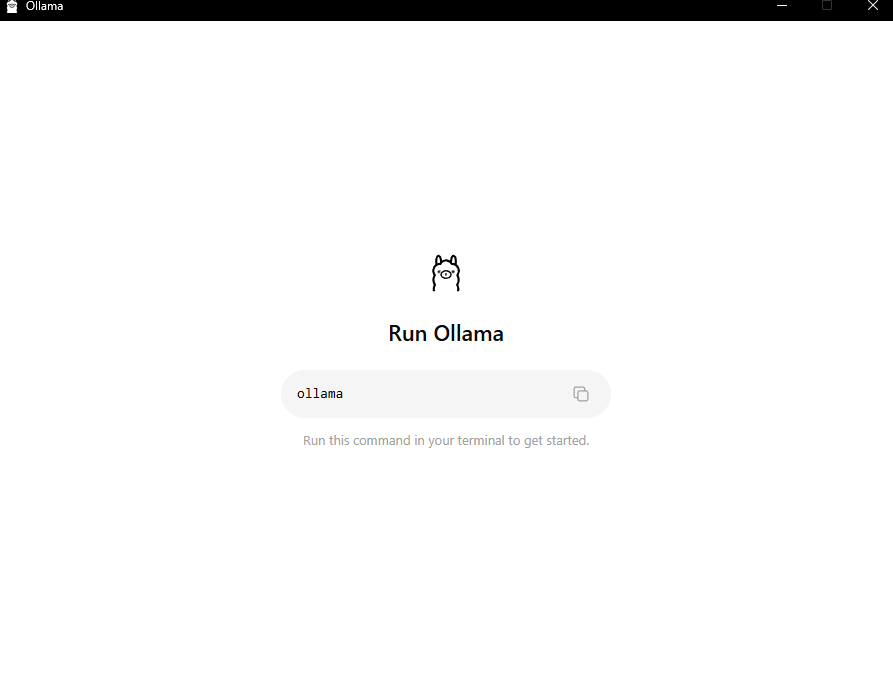
This downloads a small Llama 3.2 model and drops you into a chat prompt automatically. That’s the entire install-to-chat flow.
Checking Ollama Is Running
Ollama runs quietly in the background after install (look for its icon in the system tray). You can confirm it’s active by visiting http://localhost:11434 in your browser; it should display “Ollama is running”.
Frequently Asked Questions
Do I need to sign up for an account?
No, an account is entirely optional and only needed for cloud-hosted models. Local use works fully without one.
Does Ollama support my GPU?
Most modern NVIDIA GPUs are supported out of the box via bundled CUDA libraries. AMD GPUs are supported on Windows via ROCm on select cards, and Ollama will fall back to CPU if no compatible GPU is found.
Where does Ollama store downloaded models?
By default, models are stored under C:\Users\<username>\.ollama\models. You can change this location by setting the OLLAMA_MODELS environment variable.
How do I update Ollama?
Ollama checks for updates automatically and will prompt you in the tray app; you can also re-download and re-run the installer at any time to update.
How do I uninstall Ollama?
Go to Settings > Apps > Installed apps, search for Ollama, and click Uninstall, same as any other Windows application.
Ollama on Windows 11: Common Issues and Fixes
If Ollama on Windows 11 fails to detect your GPU, check that you have the latest NVIDIA driver installed and that Windows Subsystem for Linux is not interfering with GPU passthrough. Most installation problems come down to an outdated driver rather than an Ollama bug itself.
Once Ollama on Windows 11 is running, you can pull any supported model with a single command and start chatting from the terminal or a local API endpoint. If you’d prefer a graphical chat interface instead of the command line, check out our LM Studio guide, which covers a point-and-click alternative for running open models locally.
Quick Recap: How to Install Ollama on Windows 11
To summarize, here is the fastest way to install Ollama on Windows 11: download the installer from the official Ollama site, run it, open a terminal, and pull your first model. Once you install Ollama on Windows 11 this way, GPU acceleration and model management are handled automatically.