NZ180/5 (20 ov)
 IND
IND NAM95/2 (21.1/50 ov)
 IRE
IRE MOZ
MOZ UGA
UGA AVL
AVL MNC
MNC RAY
RAY ELC
ELC GMB
GMB ZMB
ZMB NGA
NGA LES
LES CAG
CAG BOL
BOL COMO
COMO SAS
SAS FCA
FCA FCU
FCU Ipswich1
 Nottm Forest1
 Alavés1
 Málaga1
 Torino3
 Monza2
 Brest1
 Nice2
Nice2 WA
WA NSW290/5 (42.4/50 ov)
 DEN
DEN KUW
KUW KENYA
KENYA QAT
QAT SWD-W
SWD-W EPR-W
EPR-W TTN-W
TTN-W WPR-W
WPR-W NZ-A135/3 (41 ov)
 IND-A113
 DHA
DHA RAJ
RAJ MYMS
MYMS CHATT
CHATT RAN
RAN BAR
BAR SYL
SYL KHU
KHU MEX-W
MEX-W ARG-W
ARG-W UAE
UAE NED
NED PAK
PAK ENG
ENG IND-W
IND-W ZIM-W
ZIM-W AFG170/3 (34.3/50 ov, target 170)
 ZIM169
 TAS137 (25.2/35 ov, target 276)
 VIC304/7 (50 ov)
 CHE0
CHE0 DYI0
DYI0 CHO1
CHO1 QIN0
QIN0 HEN1
HEN1 BEI0
BEI0 LIA1
LIA1 ZHE0
ZHE0 QWC1
QWC1 YUN0
YUN0 SHX0
SHX0 Shanghai Shenh0
 TIG0
TIG0 SHP0
SHP0 WTT1
WTT1 SHT3
SHT3 KOE
KOE S04
S04 M05
M05 SVW
SVW RBL
RBL ELV
ELV Stuttgart2
 Gladbach3
 Al Ahli4
 Al Khaleej1
If typing terminal commands isn’t your thing, LM Studio gives you a full point-and-click app for downloading and chatting with open AI models, no command line required. Here’s how to set it up and run your first model.
Why Choose LM Studio Over Ollama?
LM Studio wraps model downloading, hardware detection, and chatting into a single desktop app with a built-in interface, similar to ChatGPT’s layout. It’s the better pick if you want a GUI from the start rather than a terminal-based workflow, and it shows you real-time stats like tokens per second and GPU memory usage.
What You’ll Need
- Windows 10/11, macOS (Apple Silicon), or Linux
- 8GB+ RAM minimum, 16GB+ recommended
- A dedicated GPU is optional but strongly recommended for speed, NVIDIA cards get full CUDA acceleration
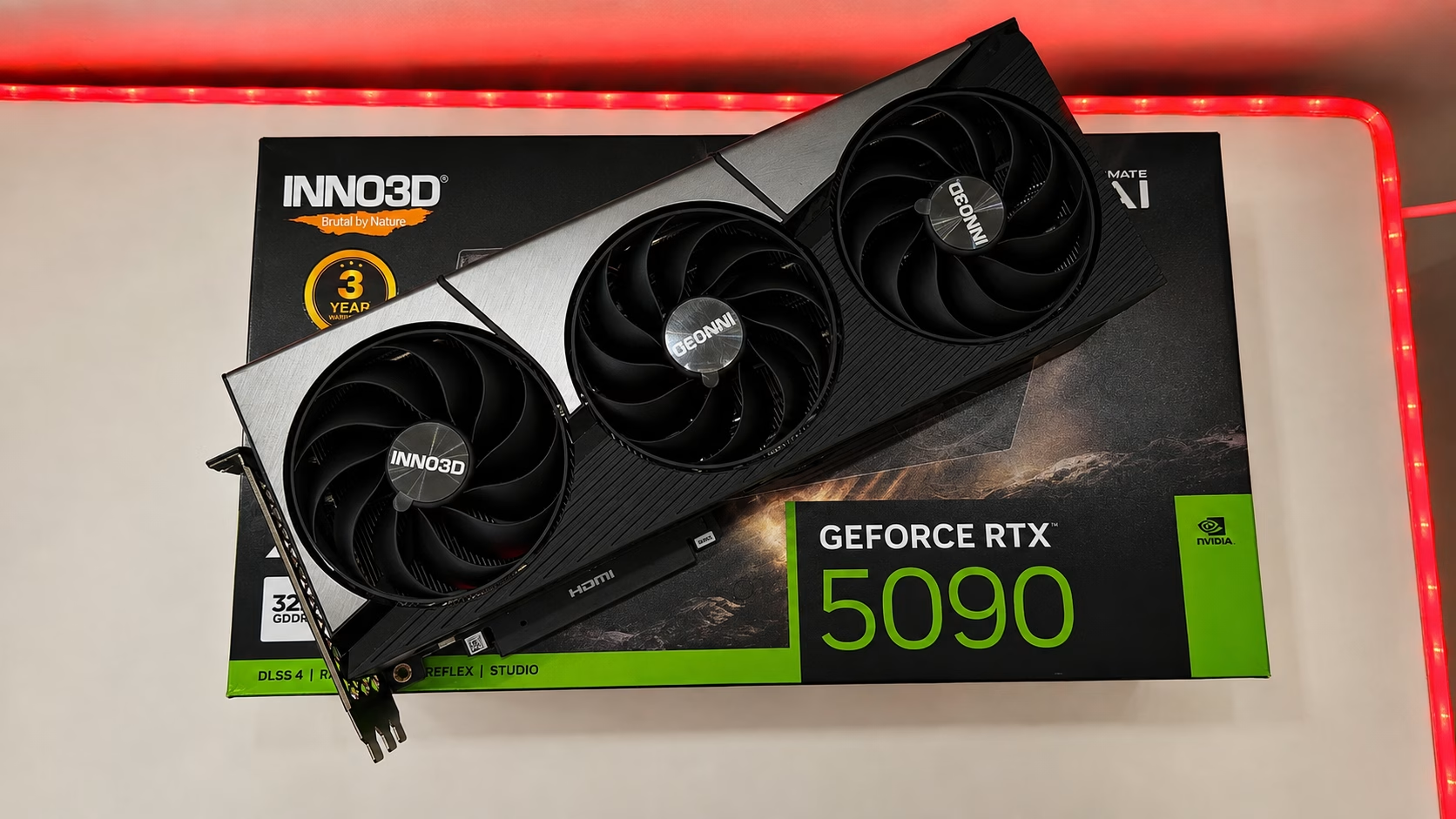
Test Config Specifications:
- Monitor: MSI MAG342CQR E2 Curved Gaming Monitor
- Motherboard: MSI PRO Z890-S WIFI Motherboard
- CPU: Intel Core Ultra 7 265K
- RAM: 32GB (2X16) Corsair Vengeance Performance DDR5 Memory
- Primary SSD: Western Digital SN850 500GB PCIe Gen 4 SSD
- Secondary/Game SSD: 480GB Crucial SATA SSD, WD Green 960GB SATA SSD
- Power Supply: Antec HCG-1000-EXTREME PSU
- GPU: INNO3D GeForce RTX 5090 X3 OC
- CPU Cooler: DEEPCOOL GAMMAXX L360 ARGB
- Cabinet: MSI MAG PANO 130R PZ
- OS: Microsoft Windows 11 Pro
Step 1: Download and Install
Go to lmstudio.ai and download the installer for your OS. Run it like any normal application, there’s no complex configuration, just Next through the installer and launch LM Studio when it finishes.
Step 2: Download a Model
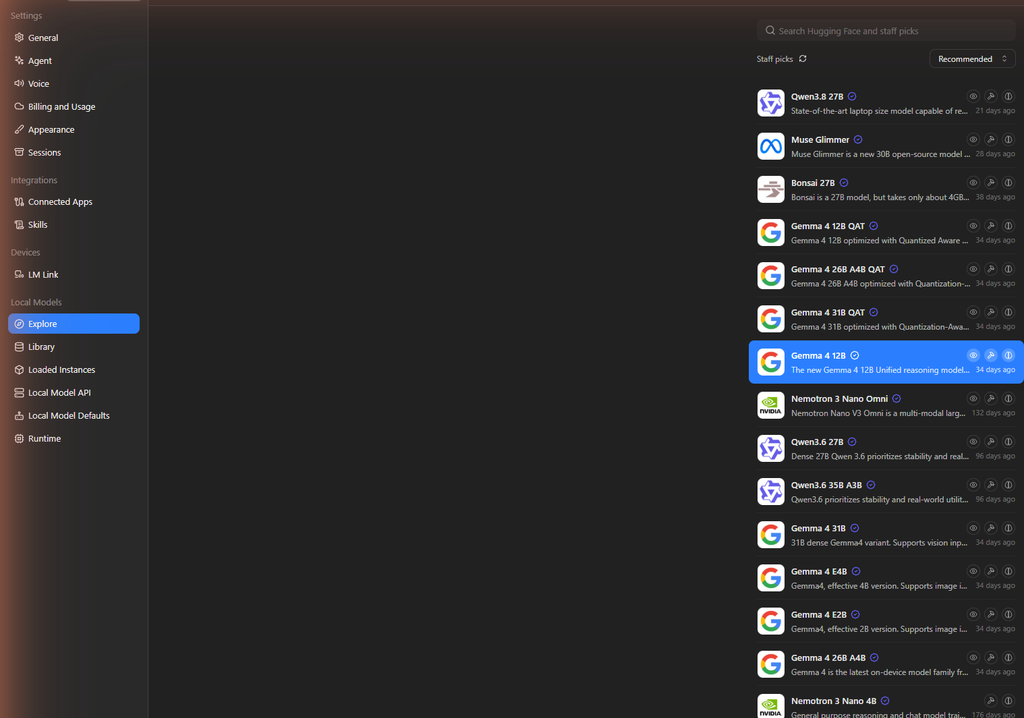
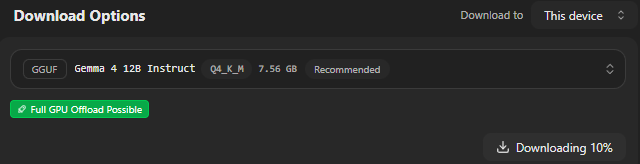
On first launch, LM Studio shows a model search screen. Use the search bar to find a model, popular options include Llama 3.1, DeepSeek R1, Qwen 2.5, and Mistral. LM Studio flags which quantized versions fit your hardware with a green “Full GPU Offload” indicator, pick one marked compatible with your VRAM and click Download.
Step 3: Start Chatting
Once downloaded, click the chat icon in the left sidebar, select your model from the dropdown at the top, and start typing. LM Studio shows generation speed (tokens/second) and lets you adjust context length, temperature, and system prompts from a side panel, all without touching a config file.

Bonus: Local API Server
LM Studio can also run as a local server with an OpenAI-compatible API (Developer tab > Start Server). This lets you point existing OpenAI-based scripts or apps at your local model just by changing the base URL, handy for developers who want to test code against a free local model before touching a paid API.
Frequently Asked Questions
Is LM Studio free?
Yes, LM Studio is free for personal use. Business use may require checking their licensing terms on the website.
LM Studio vs Ollama, which is better?
Ollama is lighter and terminal-first, better for developers and scripting. LM Studio is GUI-first, better if you want a visual chat interface and easy model browsing without any command-line use.
Can I use LM Studio without a GPU?
Yes, it runs on CPU too, just pick a smaller quantized model and expect slower responses.
What file formats does LM Studio support?
It runs GGUF-format models, the standard quantized format used by llama.cpp, which covers the vast majority of open models available today.
Does LM Studio send my data anywhere?
No, all inference happens locally on your machine. Nothing is uploaded unless you manually enable a cloud or sync feature.
LM Studio Performance Tips on an RTX 5090
LM Studio automatically detects your GPU and offers full GPU offload when hardware allows, and on an RTX 5090 you can comfortably run 12B-70B parameter models with fast token generation thanks to the card’s 32GB of VRAM. If you’re new to local LLMs, LM Studio is one of the easiest ways to get a chat-style interface running without touching a terminal.
For lower-VRAM machines, LM Studio also supports quantized GGUF models, letting you trade a small amount of accuracy for a much smaller memory footprint. This makes LM Studio a flexible choice whether you’re on a high-end workstation or a modest laptop, and it remains one of the most beginner-friendly ways to explore local, private AI chat.
If you’d rather run models from the command line instead of a GUI, our Stable Diffusion RTX 5090 guide covers a similar local-AI setup for image generation on the same hardware.
Buy the INNO3D GeForce RTX 5090 X3 OC from here