 NED
NED OMA
OMA NAM316/7
 IRE69/4 (15.1/50 ov, target 317)
 SA203/1 (44.3 ov)
 AUS
AUS BEI0
BEI0 JHM1
JHM1 RCH0
RCH0 KRE0
KRE0 ABH
ABH ALF
ALF AFG
AFG ZIM
ZIM SAS
SAS LAZ
LAZ ROMA
ROMA CAG
CAG TOR
TOR COMO
COMO BAN
BAN WI
WI IND-W
IND-W ZIM-W
ZIM-W GOA
GOA SC Delhi
 PAK110
 SL114/2 (18.1/50 ov, target 111)
 NZ198/3
 IND199/4 (13.2/20 ov, target 199)
 Sevilla2
 Osasuna0
 PSG2
PSG2 Lyon0
Lyon0 JER
JER KUW
KUW PNG
PNG QAT
QAT JAB
JAB KAY102/5 (14.4/20 ov)
 SIKM184
 NAGA187 & 46/4 (34 ov)
 JHK131/4 (47 ov)
 DELHI515/5d
 ODSA194
 SVCS13/0 (5 ov)
 BRODA616
 J & K6/0 (4 ov)
 CHD685/5d
 HP49/0 (14 ov)
 CGR216/8 (95 ov)
 AP231
AP231 AUCK
AUCK CANT
CANT CD
CD ND
ND DEN
DEN KENYA
KENYA POA
POA SPR
SPR BIK149 (19.3/20 ov, target 158)
 CHR157/3
 BRB149/5 (16.2/20 ov, target 148)
 MIS147
 MOW107/9
 TOK111/5 (18.4/20 ov, target 108)
 LUL88/3 (9.5/20 ov, target 88)
 Milan
Milan Bologna
 Parma
Parma Udinese
 Venezia
 Inter Milan
 Mohun Bagan1
 Chennaiyin0
 DHC0
DHC0 VIS1
VIS1 JDT3
JDT3 PORT0
PORT0 KYO5
KYO5 NEW2
NEW2
iPhone 15 Pro and newer models can now assign ChatGPT to the Action button, offering instant voice-based AI assistance without replacing Siri. This setup provides handsfree access to OpenAI’s advanced chatbot, creating a physical shortcut to a more capable conversational assistant.
Table of Contents
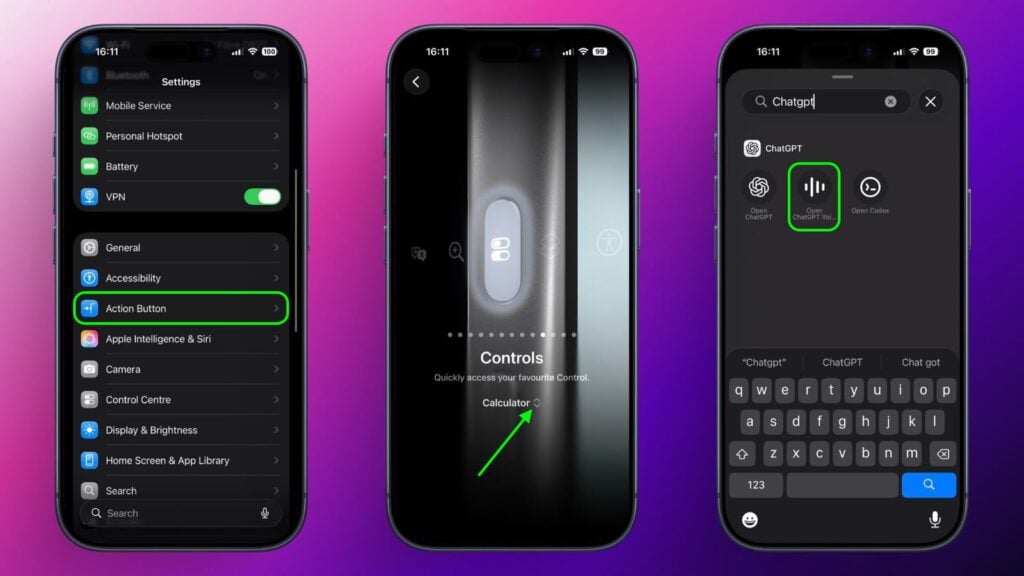
Step-by-Step Setup Process
| Step | Action | Details |
|---|---|---|
| 1. Install App | Download ChatGPT app | Free on App Store, sign in or create account |
| 2. Open Settings | Go to Settings app | Navigate to Action Button settings |
| 3. Select Controls | Swipe to Controls | Tap two chevrons beside current control |
| 4. Search ChatGPT | Type “ChatGPT” | Use control search field |
| 5. Assign Voice Mode | Select “Open ChatGPT Voice” | Long press Action button to activate |
| 6. Grant Permission | Allow microphone access | Required on first activation only |
| Compatible Models | iPhone 15 Pro, 16 Pro series | Action button required |
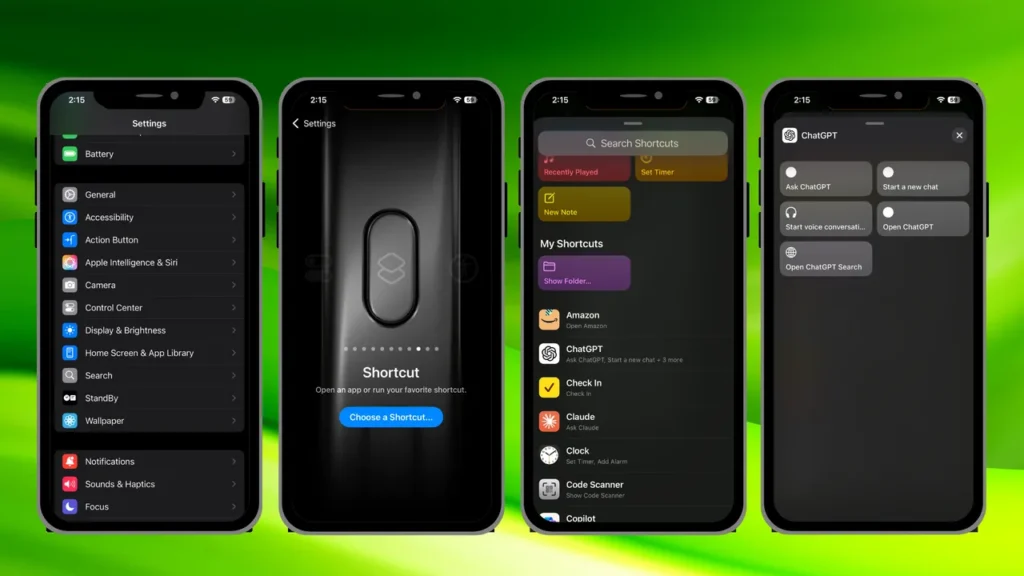
Key Features and Benefits
A recent update revolutionized ChatGPT’s voice mode by integrating it into the main chat window instead of a separate interface. Responses now appear in real-time, combining spoken output with on-screen text and generated visuals, maintaining conversation context seamlessly while allowing smooth transitions between typing and speaking.
The Dynamic Island integration enables multitasking during voice sessions. When you swipe away from ChatGPT, conversations continue in the background with the assistant’s status displayed in the Dynamic Island. Simply tap the island to return to the app, or tap “End” to stop the session.
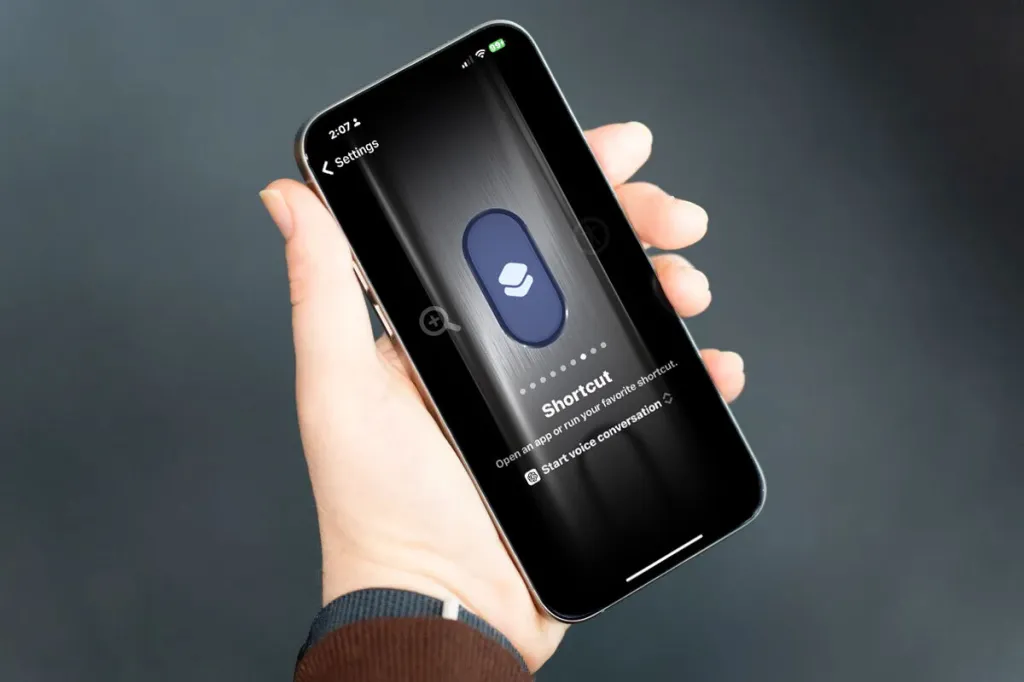
Important Limitations to Know
While this setup provides quick physical access to a more context-aware assistant, ChatGPT cannot perform Siri-like system actions such as accessing your calendar, setting alarms, controlling HomeKit devices, or launching apps. It functions purely as a conversational AI assistant without deep iOS integration.
Apple currently doesn’t allow users to replace the Side button’s Siri functionality with alternative assistants, making the Action button assignment the only native workaround for quick AI assistant access on newer iPhone Pro models.
For comprehensive iPhone tips and AI assistant guides, visit TechnoSports.