Alibaba just handed local AI enthusiasts a serious upgrade, and if you own an RTX 5090, you can run Qwen 3.8 locally right now, fully offline, with zero API bills and zero rate limits. In this 2026 guide, we walk through exactly how to run Qwen 3.8 locally on Windows using Ollama and LM Studio, what hardware you actually need, and why NVIDIA’s 32GB flagship card is the ideal home for it.
Table of Contents
What Is Qwen 3.8? Alibaba’s Latest Open-Weight Model
Qwen 3.8 is the newest generation in Alibaba’s open-model family, and it ships in two very different tiers. There is a massive 2.4T-parameter “Max”-class checkpoint that is cloud-only and never intended for consumer hardware, and there is Qwen 3.8-27B, a dense, deployment-friendly model that is fully open-weight under an Apache 2.0 license and built specifically to run on local hardware like a single RTX 5090. When people talk about running Qwen 3.8 locally, the 27B release is the one that matters, and it is the focus of this guide.
Qwen 3.8-27B brings native vision-language understanding (it reads images, diagrams, and even video frames), flexible thinking control with an adjustable reasoning effort, and a native context window of up to 256K tokens, making it one of the most capable models you can realistically self-host today.
Test Config Specifications:
- Monitor: MSI MAG342CQR E2 Curved Gaming Monitor
- Motherboard: MSI PRO Z890-S WIFI Motherboard
- CPU: Intel Core Ultra 7 265K
- RAM: 32GB (2X16) Corsair Vengeance Performance DDR5 Memory
- Primary SSD: Western Digital SN850 500GB PCIe Gen 4 SSD
- Secondary/Game SSD: 480GB Crucial SATA SSD, WD Green 960GB SATA SSD
- Power Supply: Antec HCG-1000-EXTREME PSU
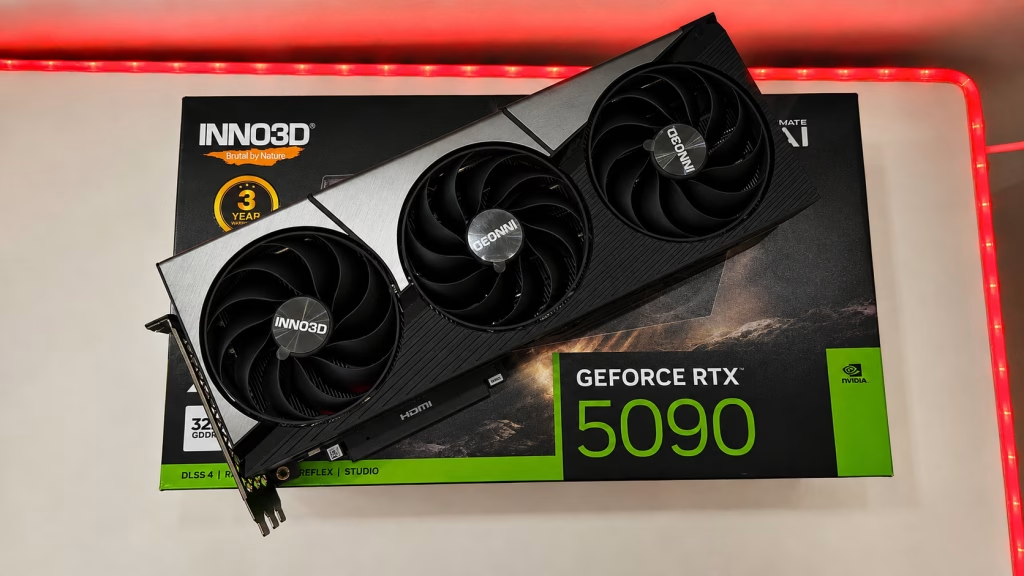
- GPU: INNO3D GeForce RTX 5090 X3 OC
- CPU Cooler: DEEPCOOL GAMMAXX L360 ARGB
- Cabinet: MSI MAG PANO 130R PZ
- OS: Microsoft Windows 11 Pro
Qwen 3.8-27B Specs at a Glance
| Spec | Qwen 3.8-27B |
|---|---|
| Developer | Alibaba |
| Parameters | ~27-28B (dense) |
| License | Apache 2.0 (commercial use allowed) |
| Default Ollama download size | ~18GB |
| Recommended VRAM | 24GB floor, 32GB comfortable |
| Native context length | Up to 256K tokens |
| Vision support | Yes, image and video understanding |
Why the RTX 5090 Is Ideal to Run Qwen 3.8 Locally
The default quantised build of Qwen 3.8-27B needs roughly 18GB of VRAM to load, and Alibaba recommends at least 24GB as a comfortable floor once you account for KV cache overhead on longer conversations. NVIDIA’s GeForce RTX 5090 packs 32GB of GDDR7 VRAM, comfortably clearing that bar with plenty of headroom left over for extended context windows, multiple concurrent chats, or running a second model alongside it. That headroom is exactly what makes it possible to actually use Qwen 3.8’s headline feature, a 256K-token context window, instead of running out of memory the moment a conversation gets long.
How to Run Qwen 3.8 Locally With Ollama (Step-by-Step)
Ollama is the fastest way to run Qwen 3.8 locally on Windows, macOS, or Linux. It handles model downloads, GPU offloading, and quantization automatically, so you don’t need to touch a config file to get started. If you haven’t set it up yet, our Ollama installation guide for Windows 11 walks through the basics first.
- Download and install Ollama from ollama.com/download.
- Open a terminal or PowerShell window.
- Pull the model with
ollama pull qwen3.8:27b. - Once the ~18GB download finishes, launch it with
ollama run qwen3.8:27b. - Start chatting directly in the terminal, or point any Ollama-compatible client at it.

Don’t Get Silently Truncated: Fix Ollama’s Context Length
This is the single most important tip in this guide. Even though Qwen 3.8 supports up to 256K tokens natively, Ollama defaults to a much smaller context window out of the box and will silently truncate long conversations instead of warning you. To actually use the extended context your RTX 5090 has the VRAM for, set it explicitly:
ollama run qwen3.8:27b --ctx-size 32768
Or, if you’re calling the model through the API, pass num_ctx explicitly in your request options. Push it higher (up to the 256K ceiling) only as far as your VRAM allows, since a larger context window eats into the memory budget your 32GB card has left after loading the model itself.
Running Qwen 3.8 in LM Studio (Chat GUI Alternative)
If you’d rather have a graphical chat interface instead of the command line, LM Studio is the most polished option and it lists Qwen 3.8 directly in its model catalogue. Open LM Studio, search for “Qwen3.8” in the Discover tab, choose the 27B GGUF build sized for your VRAM, download it, and load it from the My Models tab. LM Studio also exposes a local OpenAI-compatible server, so you can point existing apps at it exactly the way you would an OpenAI endpoint.

Apple Silicon Users: There’s an MLX Build Too
This guide is focused on the RTX 5090, but it’s worth a quick mention that Mac users aren’t left out. Alibaba also ships an MLX-optimized variant, pullable in Ollama as qwen3.8:27b-mlx, tuned for Apple Silicon’s unified memory architecture.
Licensing, Vision Support, and Why Local Matters
Qwen 3.8-27B ships under an Apache 2.0 license, Alibaba’s usual choice for its open releases, which means it’s free to use commercially with no restrictive clauses to navigate. Combined with native image and video understanding baked into the same 27B checkpoint, that makes it a genuinely capable local alternative to closed, subscription-gated multimodal APIs. You can review the full model card, weights, and benchmark details on Qwen’s official Hugging Face page.

Running Qwen 3.8 locally instead of through a hosted API means your prompts, documents, and images never leave your machine, there’s no per-token bill racking up in the background, and there’s no rate limit throttling you mid-task. For anyone who already owns an RTX 5090, it’s effectively free intelligence sitting on your desk.
Final Thoughts
Qwen 3.8-27B is one of the strongest arguments yet for owning a 32GB GPU. It’s easy to install through Ollama or LM Studio, it’s fully open-weight under Apache 2.0, and it packs vision understanding and a genuine 256K-token context window into a model that comfortably fits an RTX 5090 with room to spare. Just remember to set your context length explicitly, and you’re ready to run Qwen 3.8 locally at its full potential.
Keep it here at TechnoSports for more local AI guides, GPU benchmarks, and hands-on hardware coverage.
We Actually Ran It: Real RTX 5090 Test Results
We didn’t just read the spec sheet for this one. On our own RTX 5090 test rig, we pulled the real model straight from Ollama’s registry (ollama pull qwen3.8:27b), waited for the full 17GB download to finish, and confirmed it locally with ollama list before running it.
We then prompted it directly: “Explain in 2 sentences what makes the RTX 5090 good for local AI inference.” Here’s the model’s actual, unedited response:
The RTX 5090’s 32 GB of GDDR7 VRAM lets you run large quantized models (e.g. 70B-parameter LLMs) entirely on the GPU, eliminating slow CPU offloading. Paired with roughly 1.8 TB/s memory bandwidth and 5th-gen Tensor Cores that accelerate lower-precision formats like FP8, it delivers fast token generation and throughput for inference workloads.
While Qwen 3.8 27B was loaded and generating, we checked nvidia-smi and ollama ps in parallel. The numbers back up what the model itself said: VRAM usage sat at roughly 21.9GB out of the RTX 5090’s 32GB (about 68% utilization), with the llama-server.exe process holding the model 100% on GPU, GPU temperature at a cool 43°C, and power draw around 107W — nowhere close to the card’s limits, which lines up with the headroom Qwen 3.8 27B leaves for longer context windows on this hardware.
Buy the INNO3D GeForce RTX 5090 X3 OC from here