Got an INNO3D GeForce RTX 5060 Ti 16GB (or any Blackwell GPU)? Here is how to go from box-open to a fully running local AI coding assistant in under 30 minutes.
Once you have the GPU seated and your drivers updated, the real unlock begins. This guide covers everything: installing Ollama or LM Studio, pulling open-source models, and wiring them up to Cursor, Claude Code, OpenCode, Continue.dev, and other AI-powered IDEs — so you get a private, zero-cost coding co-pilot running entirely on your own machine.
Table of Contents
What You Need Before Starting
- RTX 5060 Ti 16GB (or any RTX 40/50 series GPU)
- NVIDIA Driver 572+ — required for Blackwell (RTX 50xx). Download from nvidia.com/drivers
- Windows 10/11 or Ubuntu 22.04+
- 16GB+ system RAM (32GB recommended)
- ~50GB free disk space for models
Verify your GPU is detected before anything else:
# Windows (PowerShell or CMD)
nvidia-smi

# Linux
nvidia-smi
You should see your RTX 5060 Ti listed with 16376 MiB VRAM. If not, reinstall your drivers before continuing.

Route 1 — Ollama (Recommended for Developers)
Ollama is the fastest way to get a model running. It handles GPU detection, model downloads, quantisation selection, and exposes a local REST API automatically. This is the route if you plan to connect to IDEs or build custom agent pipelines.
Step 1 — Install Ollama
Windows: Download the installer from ollama.com/download and run it. Ollama installs as a background service that starts automatically.
Linux (one-liner):
curl -fsSL https://ollama.com/install.sh | sh
macOS:
brew install ollama
Verify the install:
ollama --version
Step 2 — Pull Your First Model
Ollama uses ollama pull <model> to download models. These are your best options for the 16GB VRAM of the RTX 5060 Ti:
# Llama 3.1 8B — fast, general purpose (4.9GB)
ollama pull llama3.1:8b

# Qwen3 14B — best reasoning at this size (9GB)
ollama pull qwen3:14b

# Qwen2.5 Coder 14B — purpose-built for code (9GB)
ollama pull qwen2.5-coder:14b

# Mistral Nemo 12B — great for long context (7.1GB)
ollama pull mistral-nemo

# Phi-4 14B — Microsoft's compact powerhouse (8.5GB)
ollama pull phi4
Tip: All models above run fully in VRAM on 16GB. No CPU offloading, no slowdown.
Step 3 — Run a Model
# Launch interactive chat
ollama run qwen2.5-coder:14b
Type your prompt and press Enter. Type /bye to exit.
Step 4 — Run as a Background API Server
This is what IDEs connect to. Ollama starts its API server automatically on install, but you can restart it manually:
# Start the server (runs on port 11434 by default)
ollama serve
Test that the API is running:
curl http://localhost:11434/api/generate -d '{
  "model": "qwen2.5-coder:14b",
  "prompt": "Write a Python function to reverse a string",
  "stream": false
}'
You should get a JSON response with the generated code. The server is now ready for IDE connections.

Route 2 — LM Studio (Best for Beginners and Model Browsing)
LM Studio is a GUI application — download models visually, see live performance stats, and manage multiple models without touching a terminal. It also exposes an OpenAI-compatible API server, so it works with every IDE that Ollama does.
Step 1 — Install LM Studio
Download from lmstudio.ai for Windows, macOS, or Linux. Run the installer — no command line needed.
Step 2 — Enable GPU Acceleration
Open LM Studio → Settings → GPU Acceleration → set to ON. It auto-detects your NVIDIA GPU. You should see your RTX 5060 Ti listed with 16GB VRAM available.
Step 3 — Browse and Download Models
- Click the Discover tab (magnifying glass icon)
- Search for any model name:
qwen2.5-coder,llama-3.1,phi-4, etc. - Filter by VRAM fit — LM Studio highlights models that fit your 16GB budget in green
- Click Download on your chosen model
Recommended models to search for in LM Studio:
| Search Term | What to Pick |
|---|---|
qwen2.5-coder | Qwen2.5-Coder-14B-Instruct Q4_K_M |
llama-3.1 | Meta-Llama-3.1-8B-Instruct Q8_0 |
phi-4 | Phi-4-Q4_K_M |
qwen3 | Qwen3-14B-Q4_K_M |
deepseek-coder | DeepSeek-Coder-V2-Lite Q4_K_M |
Step 4 — Load and Chat
- Click My Models tab
- Select your downloaded model and click Load
- Switch to the Chat tab and start talking
Step 5 — Start the Local API Server
- Click the Developer tab (angle bracket icon
</>) - Toggle Start Server — it runs on
http://localhost:1234 - The server exposes an OpenAI-compatible API at
http://localhost:1234/v1
Test it:
curl http://localhost:1234/v1/chat/completions \
  -H "Content-Type: application/json" \
  -d '{
    "model": "qwen2.5-coder-14b",
    "messages": [{"role": "user", "content": "Explain async/await in Python"}]
  }'
Connecting to AI-Powered IDEs
Once Ollama or LM Studio is running, connecting to your IDE takes 2–3 minutes. Here is every major option:
Continue.dev (VS Code & JetBrains)
Continue is the most flexible open-source AI coding assistant. It works with any local model via Ollama or LM Studio.
Install:
- Open VS Code → Extensions → search
Continue - Install Continue – Codestral, Claude, and more
Configure with Ollama:
Open ~/.continue/config.json and add:
{
  "models": [
    {
      "title": "Qwen2.5 Coder 14B (Local)",
      "provider": "ollama",
      "model": "qwen2.5-coder:14b",
      "apiBase": "http://localhost:11434"
    }
  ],
  "tabAutocompleteModel": {
    "title": "Qwen2.5 Coder 14B",
    "provider": "ollama",
    "model": "qwen2.5-coder:14b"
  }
}
Configure with LM Studio:
{
  "models": [
    {
      "title": "Local LM Studio",
      "provider": "openai",
      "model": "qwen2.5-coder-14b",
      "apiBase": "http://localhost:1234/v1",
      "apiKey": "lm-studio"
    }
  ]
}
You now have inline autocomplete and a chat sidebar powered entirely by your local GPU.
Cursor
Cursor is a VS Code fork with deep AI integration. It natively supports custom model endpoints.
Setup:
- Open Cursor → Settings →
Cursor Settings - Go to Models tab
- Click Add Model
- Fill in:
- Name:
Qwen2.5 Coder 14B (Local) - API Base URL:
http://localhost:11434/v1(Ollama) orhttp://localhost:1234/v1(LM Studio) - API Key:
ollama(Ollama ignores this, but the field cannot be empty) - Model Name:
qwen2.5-coder:14b
- Name:
- Click Verify — Cursor pings your endpoint
- Select your new model from the model dropdown in chat
Now Ctrl+K (inline edit), Ctrl+L (chat), and Tab autocomplete all route through your local GPU.
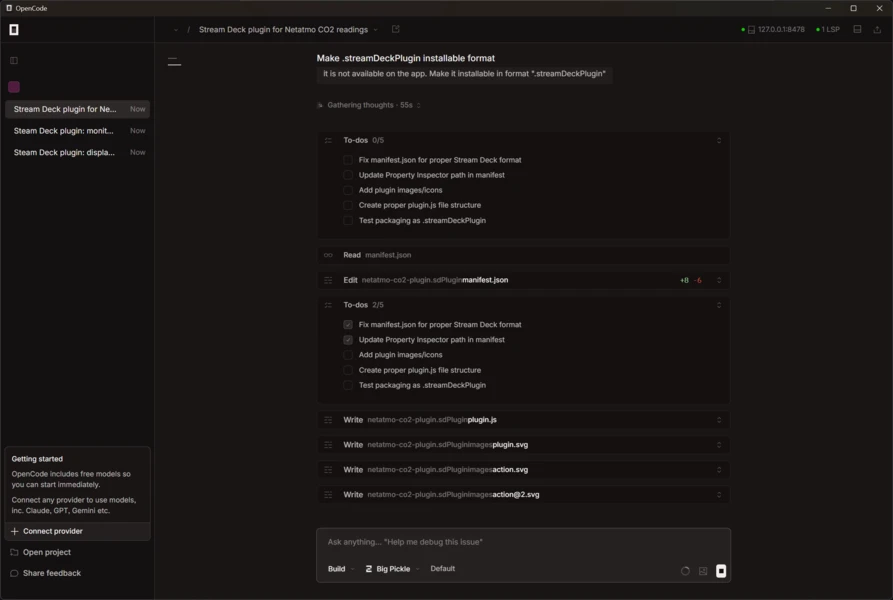
OpenCode (Terminal-based AI Coding Agent)
OpenCode is an agentic coding assistant that runs in your terminal — similar to Claude Code but works with any OpenAI-compatible endpoint.
Install:
npm install -g opencode-ai
Configure to use local Ollama:
Create or edit ~/.config/opencode/config.json:
{
  "provider": {
    "local": {
      "name": "Local Ollama",
      "type": "openai",
      "baseURL": "http://localhost:11434/v1",
      "apiKey": "ollama",
      "models": {
        "qwen2.5-coder:14b": {
          "name": "Qwen2.5 Coder 14B"
        }
      }
    }
  },
  "defaultModel": "local/qwen2.5-coder:14b"
}
Run:
opencode
OpenCode opens in your terminal, reads your codebase, and uses your local model to write, edit, and debug files autonomously.
Claude Code (with Local Model Proxy)
Claude Code is Anthropic’s official terminal coding agent. By default it uses the Anthropic API, but you can point it at a local model using a compatibility proxy.
Option A — Use a proxy like LiteLLM:
pip install litellm

# Start proxy that makes Ollama look like Anthropic's API
litellm --model ollama/qwen2.5-coder:14b --port 8082
Then set the environment variable before running Claude Code:
export ANTHROPIC_BASE_URL=http://localhost:8082
export ANTHROPIC_API_KEY=fake-key
claude
Note: Claude Code is optimised for Claude models and tool-calling may degrade with non-Anthropic models. For best results with Claude Code, use the official Anthropic API. Reserve the local model for Continue.dev or Cursor, and use Claude Code for tasks that benefit from Claude’s reasoning.
Option B — Run both: Use your local Qwen2.5 Coder 14B for fast inline autocomplete and tab completion in Cursor/Continue, and keep Claude Code running with the Anthropic API for complex multi-file refactoring tasks. The RTX 5060 Ti runs the local model at zero cost; Claude Code’s API usage stays minimal.
Aider (Terminal AI Pair Programmer)
Aider is a powerful terminal-based pair programmer that edits your actual files, commits to git, and handles multi-file changes.
Install:
pip install aider-chat
Run with Ollama:
aider --model ollama/qwen2.5-coder:14b --no-auto-commits
Run with LM Studio:
aider --openai-api-base http://localhost:1234/v1 --openai-api-key lm-studio --model openai/qwen2.5-coder-14b
Aider works best qwen2.5-coder:14b for code tasks and qwen3:14b for reasoning-heavy refactors.
Model Recommendations by Use Case
| Use Case | Best Model | Ollama Command |
|---|---|---|
| General coding + autocomplete | Qwen2.5 Coder 14B | ollama pull qwen2.5-coder:14b |
| Reasoning / architecture decisions | Qwen3 14B | ollama pull qwen3:14b |
| Fast completions (low latency) | Llama 3.1 8B | ollama pull llama3.1:8b |
| Long context (100K+) | Qwen3.5 35B-A3B MoE | ollama pull qwen3.5:35b-a3b |
| Instruction following | Phi-4 14B | ollama pull phi4 |
All models listed above run fully in the 16GB VRAM of the RTX 5060 Ti with no CPU offloading.

Performance Tips
Increase context length in Ollama:
OLLAMA_NUM_CTX=32768 ollama run qwen2.5-coder:14b
Run multiple models simultaneously — the 16GB frame buffer lets you keep two smaller models loaded at once. Load an 8B model for autocomplete and a 14B model for chat:
ollama run llama3.1:8b &
ollama run qwen2.5-coder:14b
Set GPU layers explicitly (rarely needed — Ollama auto-detects):
OLLAMA_NUM_GPU=999 ollama serve
Check GPU utilisation while a model runs:
# In a second terminal
nvidia-smi dmon -s u
You should see GPU utilisation spike to 80–100% during inference. If it stays near 0%, the model is running on CPU — check your driver version and restart Ollama.
Troubleshooting
Model runs slowly (< 5 tok/s): GPU not being used. Run nvidia-smi during inference — if GPU-Util is 0%, reinstall drivers (572+) and restart Ollama.
Out of memory error: The model is too large for VRAM. Switch to a quantized Q4_K_M version, which is 40–50% smaller. In Ollama: ollama pull qwen3:14b-q4_K_M.
API connection refused: Ollama server isn’t running. Run ollama serve in a terminal and leave it open, or set Ollama to run on startup in Windows Services.
LM Studio server not connecting: Check that the server toggle is ON in the Developer tab and that your firewall isn’t blocking port 1234.
Cursor / Continue can’t reach the endpoint: Use 127.0.0.1 instead of localhost in the API base URL — some systems resolve localhost to IPv6 which Ollama doesn’t bind to by default.
The End Result
After following this guide, you will have:
- A local inference server running your choice of 8B–14B open-source models
- Zero-cost, zero-latency AI autocomplete in VS Code, Cursor, or JetBrains
- A terminal coding agent (Aider or OpenCode) that edits real files
- Full privacy — no code, no prompts, no context ever leaves your machine
The RTX 5060 Ti 16GB turns a mid-range PC into a self-contained AI workstation. The GPU does the heavy lifting. The tools above make it useful in under half an hour.
For GPU reviews, AI hardware guides, and local AI tutorials, follow TechnoSports.