
 SA312/6 (76.5 ov)
 AUS
AUS AFG53/4 (10/20 ov)
 ZIM
ZIM SAS
SAS LAZ
LAZ ROMA
ROMA CAG
CAG TOR
TOR COMO
COMO BAN
BAN WI
WI IND-W
IND-W ZIM-W
ZIM-W GOA
GOA SC Delhi
 Milan
Milan Bologna
 Parma
Parma Udinese
 ABH0
ABH0 ALF1
ALF1 PAK110
 SL114/2 (18.1/50 ov, target 111)
 NAM316/7
 IRE253 (44.5/50 ov, target 317)
 NZ198/3
 IND199/4 (13.2 ov)
 JAB113 (19.3/20 ov, target 133)
 KAY132/9
 SIKM184
 NAGA187 & 46/4 (34 ov)
 JHK131/4 (47 ov)
 DELHI515/5d
 ODSA194
 SVCS13/0 (5 ov)
 BRODA616
 J & K6/0 (4 ov)
 CHD685/5d
 HP49/0 (14 ov)
 CGR216/8 (95 ov)
 AP231
AP231 HYD193/2 (54 ov)
 PNJB431
 KNTKA297/7 (95 ov)
 TPURA194
 KER101/6 (35 ov)
 BENG350
 AUCK
AUCK CANT
CANT CD
CD ND
ND DEN
DEN QAT
QAT KENYA
KENYA KUW
KUW POA
POA SPR
SPR BRB
BRB VAG
VAG NED371/5
 OMA265 (49.3/50 ov, target 372)
 BIK149 (19.3/20 ov, target 158)
 CHR157/3
 JER224
 Venezia
 Inter Milan
 Genoa
Genoa Juventus
 Sevilla2
 Osasuna0
 PSG2
PSG2 Lyon0
Lyon0 Mohun Bagan1
 Chennaiyin0
 BEI2
BEI2 JHM2
JHM2 RCH0
RCH0 KRE0
KRE0
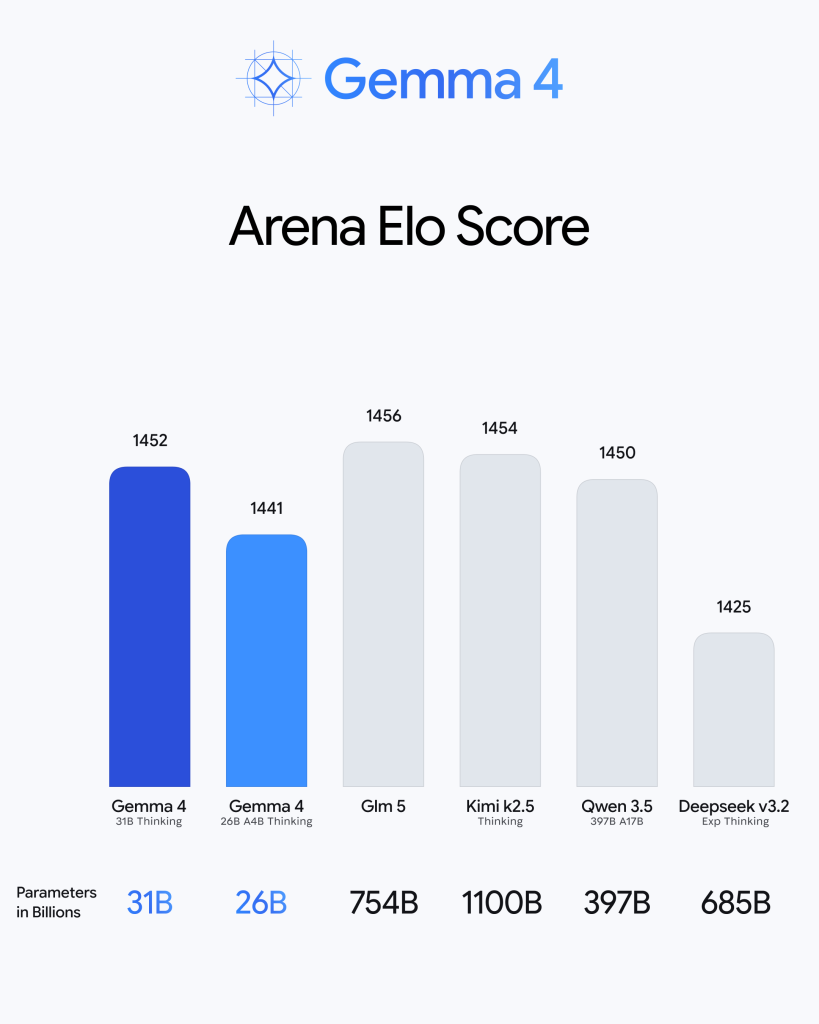
The release of Google’s open-source model Gemma 4 on April 2, 2026, has fundamentally changed the local AI landscape. Built on the same research as Gemini 3, this new family of models is not just “lightweight”—it is a multimodal powerhouse that brings native vision, audio processing, and elite reasoning directly to your personal hardware.
If you value privacy, speed, and cost-efficiency, running Gemma 4 locally is the way to go. Here is your definitive guide on how to set it up using Ollama, the easiest tool for local LLM management.
Why Gemma 4 is a Game Changer
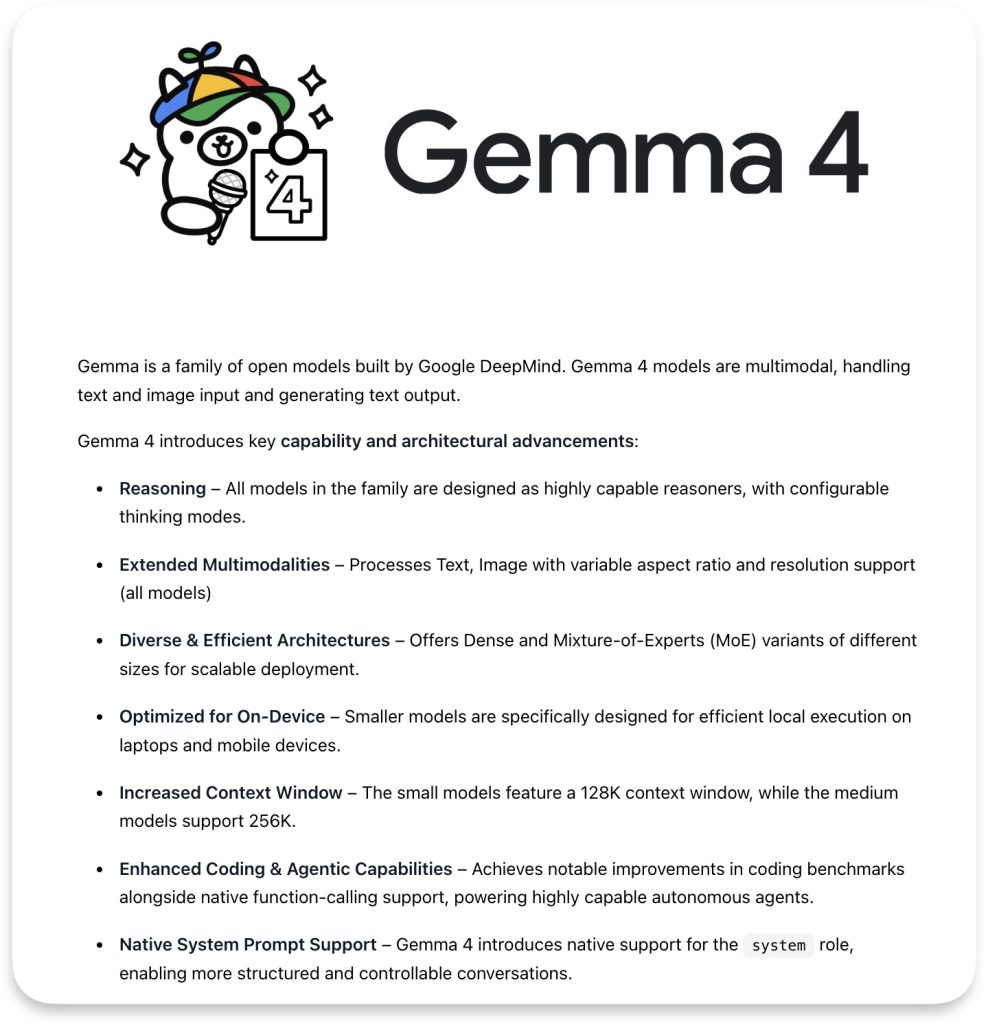
Unlike previous generations, Gemma 4 is released under a commercially permissive Apache 2.0 license. It moves beyond simple text, excelling at complex logic, agentic workflows, and offline code generation.
- Multimodal Mastery: Native support for images and video across all models, with audio input on the smaller variants.
- Massive Context: Context windows reach up to 256K, allowing you to feed it entire documents or codebases.
- Size Options: Available in four variants: E2B and E4B (optimized for edge devices), 26B MoE (Mixture of Experts), and 31B Dense (maximum quality).
Step 1: Check Your Hardware Requirements
Before installing, ensure your machine can handle the specific variant you want to run. Local AI performance depends heavily on your RAM and VRAM.
| Model Variant | Minimum RAM/VRAM | Recommended Device |
| Gemma 4 E2B/E4B | 5GB – 8GB | Modern Laptops, M2/M3 Mac Mini |
| Gemma 4 26B MoE | 16GB – 24GB | RTX 4080 (16GB) or M3 Max |
| Gemma 4 31B Dense | 32GB+ | RTX 4090 or Apple Silicon with 48GB+ RAM |
For the best experience, especially with the larger models, having a dedicated GPU is crucial. You can check out our latest coverage on NVIDIA Blackwell GPUs to see how modern hardware is optimizing these workloads.
Step 2: Install Ollama on Your Computer
Ollama is the bridge that makes running these complex models as simple as a single command.
- Download: Visit ollama.com and download the installer for your OS (Windows, macOS, or Linux).
- Installation:
- Windows: Run the
.exefile and follow the prompts. - macOS: Unzip the package and move the Ollama app to your Applications folder.
- Linux: Use the official curl script:
curl -fsSL https://ollama.com/install.sh | sh.
- Windows: Run the
- Verify: Open your terminal and type
ollama --version. You should see the current version displayed.
Step 3: Pull and Run Gemma 4
Once Ollama is running in the background, you can download and start Gemma 4 immediately.
The Quick Start Command
To run the default optimised version of Gemma 4, enter the following in your terminal:
Bash
ollama run gemma4
Ollama will automatically pull the model weights (the first time) and open an interactive chat prompt.
Choosing Specific Sizes
If you have a high-end setup or a more modest laptop, you might want to specify the model size:
- Edge/Small:
ollama run gemma4:e2borollama run gemma4:e4b - Powerhouse:
ollama run gemma4:26b(MoE variant) - Full Quality:
ollama run gemma4:31b
Step 4: Using Gemma 4 Multimodality
Since Gemma 4 supports vision, you can even use Ollama to analyze images locally.
- Command:
ollama run gemma4 "describe this image /path/to/your/photo.jpg"
This local-first approach ensures that your private photos never leave your machine, providing a level of digital sovereignty that cloud-based models can’t match.
Performance Optimization Tips
- GPU Acceleration: Ollama uses Metal on Apple Silicon and CUDA on NVIDIA GPUs automatically. Ensure your NVIDIA drivers are up to date for maximum efficiency.
- Thinking Mode: Gemma 4 supports Chain-of-Thought reasoning. To enable this in your system prompt, use the
<|think|>token to see the model’s internal logic before its final answer. - CPU Limitation: While Gemma 4 can run on a CPU, expect significantly slower response times (3-8 tokens/sec). For a smoother experience, stick to the E2B or E4B models if you don’t have a dedicated GPU.
Final Thoughts
Installing Gemma 4 via Ollama is the fastest way to turn your computer into a private AI workstation. Whether you’re a developer building agentic tools or a hobbyist exploring the latest in gaming AI, Gemma 4 offers the perfect balance of open-source freedom and frontier-level performance.
Which variant of Gemma 4 are you running? Let us know your performance benchmarks in the comments below!
What specific task are you planning to use Gemma 4 for on your machine?