NAM321/6 (50 ov)
 IRE
IRE GMB
GMB ZMB
ZMB NGA
NGA LES
LES CAG
CAG BOL
BOL COMO
COMO SAS
SAS FCA
FCA FCU
FCU KOE
KOE S04
S04 M05
M05 SVW
SVW RBL
RBL ELV
ELV MOZ19
MOZ19 UGA23/0 (0.5/20 ov, target 20)
 NZ180/5
 IND181/6 (19.5/20 ov, target 181)
 Ipswich1
 Nottm Forest1
 Alavés1
 Málaga1
 WA105/3 (18.5/50 ov, target 372)
 NSW371/8
 DEN
DEN KUW
KUW KENYA
KENYA QAT
QAT SWD-W
SWD-W EPR-W
EPR-W TTN-W
TTN-W WPR-W
WPR-W BOR
BOR WAR15/1 (2.5/20 ov)
 LIONS
LIONS Limpo21/1 (2.5/20 ov)
 NZ-A135/3 (41 ov)
 IND-A113
 DHA293/3 (84.1 ov)
 RAJ
RAJ MYMS
MYMS CHATT
CHATT RAN320/5 (80 ov)
 BAR
BAR MEX-W
MEX-W ARG-W
ARG-W UAE
UAE NED
NED PAK
PAK ENG
ENG IND-W
IND-W ZIM-W
ZIM-W AFG170/3 (34.3/50 ov, target 170)
 ZIM169
 SCP
SCP HSV
HSV ARS
ARS EVE
EVE Torino3
 Monza2
 Brest1
 Nice2
Nice2 Stuttgart2
 Gladbach3
 Al Ahli4
 Al Khaleej1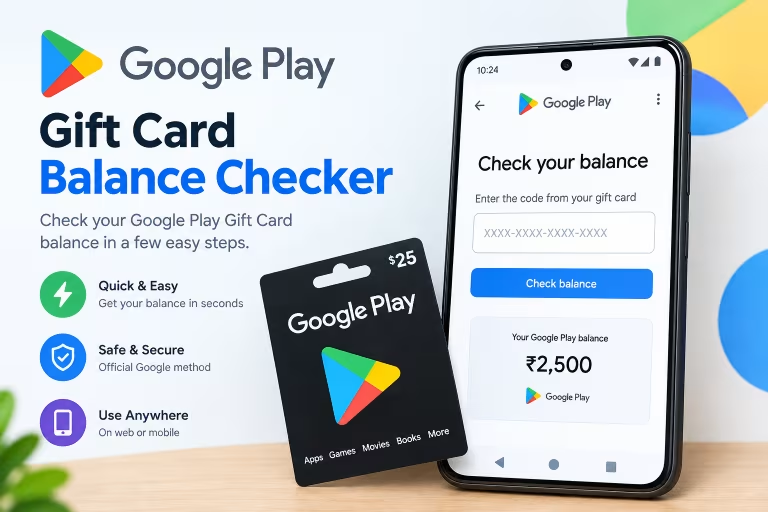
A reliable Google Play Gift Card Balance Checker takes the guesswork out of verifying digital funds. Physical vouchers need manual validation at a cash register, but digital gift cards let you check your balance right from your device.
Google Play gift cards come in different denominations, depending on the retailer and country, so you can choose an amount that suits your spending habits. Checking a balance may seem complicated, but Google Play’s built-in tools make it straightforward across all supported regions.
Understanding Google Play Gift Cards
What is a Google Play Gift Card?
A the card is a prepaid way to access digital content across the Google ecosystem. Google LLC developed the Google Play Store app, and these cards offer a secure way to pay for a wide range of services. To redeem one, you need a valid Google Account and an active internet connection so you can add the credit to your profile.
Once applied, the funds become part of your account balance and remain available until you spend them. This lets users manage spending limits while keeping control of their digital wallet. The cards work as currency across the digital marketplace, covering everything from subscription renewals to one-time media downloads. Retailers sell them in amounts ranging from small values for casual browsing to larger ones for expanding a library; secure transaction systems help protect funds from unauthorised deductions. Understanding what these cards cover can help users plan digital spending, avoid unexpected charges to linked bank accounts, and make the most of their credit.
Benefits of Using the Cards
The biggest advantage is their versatility across the store. You can use gift card funds to buy apps, games, movies, and books on Google Play, explore different kinds of entertainment, and avoid linking a direct payment method. They also help with budgeting because spending cannot exceed the card’s value.
Parents often use these cards to limit children’s spending while still giving them access to premium content. Keeping gift card funds separate from bank accounts also adds a layer of financial security for frequent shoppers. Loading funds in advance sets a clear spending limit and helps prevent impulse purchases from driving up costs. This can be especially useful for households with multiple digital profiles and separate budgets. Unused balances carry over to future purchases rather than disappearing after one transaction, and small amounts can build up to cover premium subscriptions or exclusive releases.
How to Use the the Card Balance Checker
Methods to Check Balance
Many users think they must enter a gift card code every time they want to check its status. However, auto-detect technology can make the process much easier. Modern Android devices may recognize redeemed codes saved to the clipboard or received by email, then prompt you to apply the balance automatically. To check funds already on your account, the most reliable option is to open the account dashboard.
Whether you use the mobile app or a desktop browser, your account data stays synchronized across platforms. If you’re exploring Google Play free options, remember that legitimate balance checks require authenticated account access, not third-party guesses. Official verification is easy to distinguish from speculative lookup tools in the secure settings menu. Auto-detection uses system integrations to scan incoming data for valid code patterns; when an email with a redemption string arrives, compatible operating systems may recognize it. Google Gemini Agents demonstrate the potential of automated workflows, but personal financial data such as gift card balances remains excluded from external processing to protect privacy.
Using the Google Play App
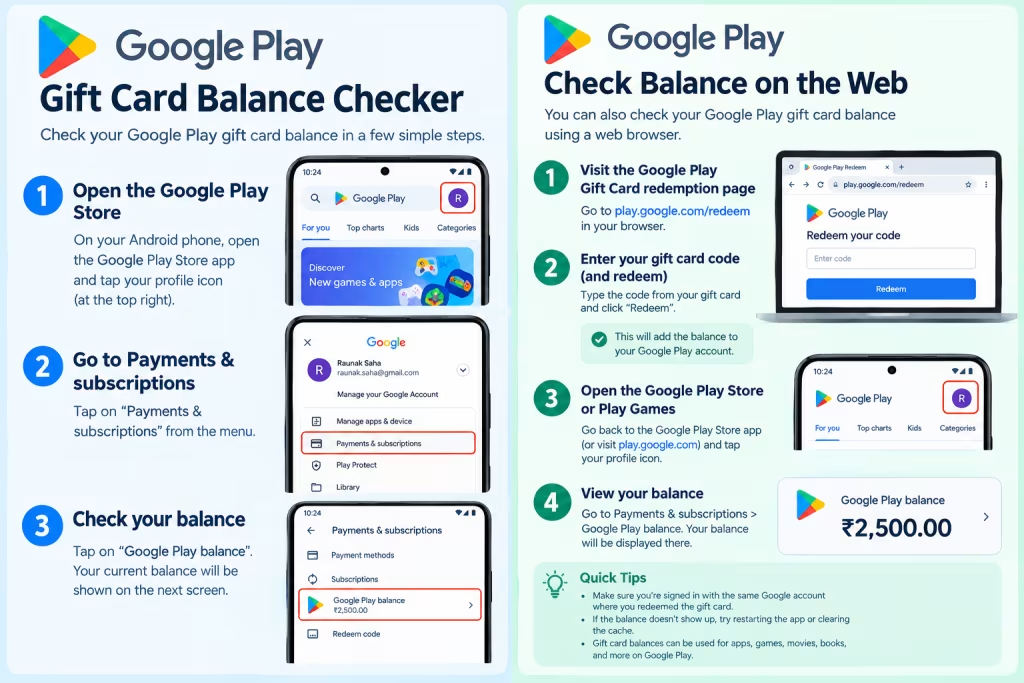
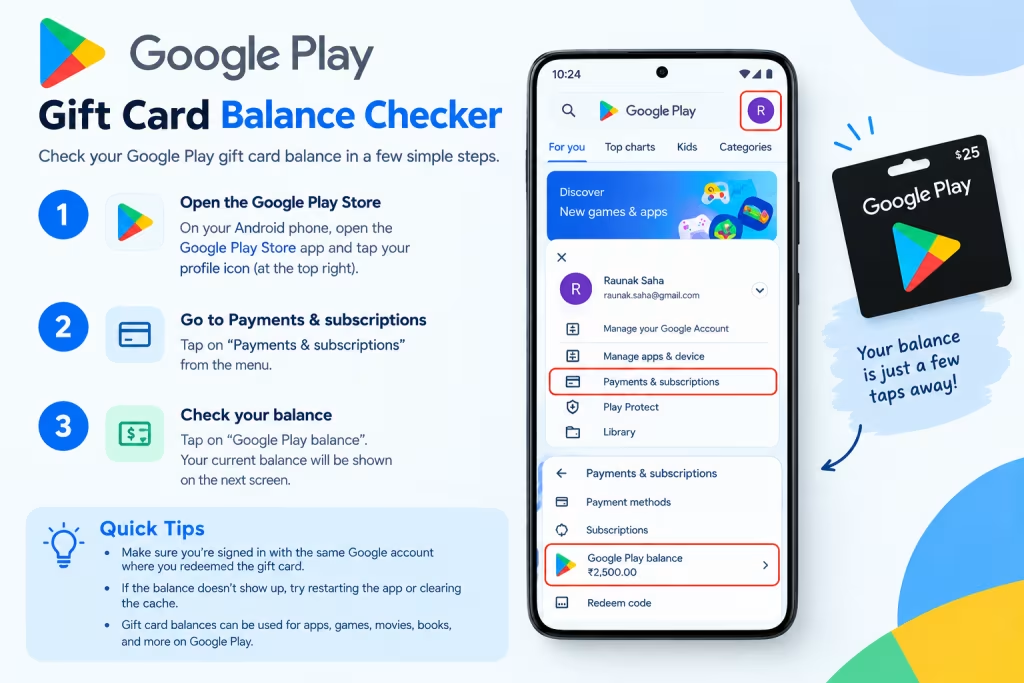
The mobile app offers the quickest way to see your current balance. Open the Google Play Store app on your Android device, then tap the profile icon in the top-right corner. Choose “Payments and subscriptions” from the menu to open your account settings, where your remaining gift card balance appears alongside other payment methods.
The displayed balance updates in real time to reflect recent purchases and pending redemptions. Checking it regularly with the the Card Balance Checker can prevent surprise payment failures and keep your financial overview accurate. The “Payments and subscriptions” menu also shows pending charges and past transactions, giving you a clear record of how you’ve used your funds. You can manage default payment methods there, too, and prioritize your gift card balance for future purchases. This setting uses stored credit before tapping secondary funding sources, while the interface’s detailed controls help you plan spending and review past activity.
Checking Balance via Website
Desktop users can check their balance on the web version of the store. Go to play.google.com and sign in to the Google Account linked to the gift card. Click the profile icon and choose “Payment settings” to open your financial overview, where the balance appears among your available funds, just as it does in the mobile app. This option is especially useful when managing multiple accounts or making larger purchases from a computer.
If you find a discrepancy during a web-based check, you can contact the card customer support through the Google Play Help Center website. A browser may add security steps, such as multi-factor authentication prompts for sensitive actions. The desktop interface also makes it easier to compare balances across Google profiles, which can help family managers oversee shared resources. You can copy balance figures quickly when coordinating group gifts or splitting costs with friends. If the webpage won’t load properly, clearing your browser’s cookies and cache often restores access; persistent web sessions also mean you may not need to sign in again when switching between balance checks and store browsing.
Common Issues and Troubleshooting
Technical glitches can sometimes interrupt balance checks. If a recently redeemed card doesn’t appear in your balance, wait a few minutes for server synchronization before trying anything else. Clearing the app cache or restarting your device often fixes temporary display errors. Network restrictions or strict privacy settings may prevent auto-detect features from recognizing codes; if that happens, manual entry offers a reliable alternative. Be sure to distinguish a normal update delay from signs of possible fraud.
Avoid unverified piracy sites and unofficial code generators promising instant balance increases, as they can put your account security at risk. If troubleshooting doesn’t resolve a discrepancy, take screenshots of the error message to share with support. Recording the exact time of your redemption attempt can help technical teams trace transaction logs.
Also check that the card’s region matches your Google Account’s country setting, since a mismatch can delay redemption and leave funds unavailable until the settings align. Send questions about a free Gift Google campaign through official support channels to avoid phishing attempts. Automated scripts that claim to unlock hidden balances can violate terms of service and put your account at risk of suspension; checking your account settings before redemption can help you avoid these common problems.
Using the the Card Balance Checker keeps your digital wallet transparent and secure. Follow the verified steps above to manage account credits without exposing yourself to fraudulent tools. Regular balance checks can help prevent declined transactions and support smarter purchases across the store.
FAQs
How do I redeem a the Card?
To redeem a the card, open the Google Play Store app and select “Redeem” from the menu. Enter the reportedly 16-character code from your physical card or email receipt, then confirm to add the funds to your account.
What to do if my balance isn’t updating?
If your balance doesn’t update right after redemption, wait reportedly about five minutes for server synchronization. Refresh the payments screen or restart the app to reload the data, and make sure your device has a stable internet connection.
Can I check my balance without redeeming?
You can’t check a redeemable balance until you apply the card to your account, because the funds exist only within your Google Profile. Before redeeming, you can still check the printed denomination on the physical card or in the original email receipt.
Are there expiration dates for the Cards?
Most the cards don’t expire, so you can keep the credit indefinitely. Laws in some jurisdictions may set validity periods, so check the terms on the card or in the Help Center if you plan to hold onto it long term. Checking your balance helps protect your digital funds and maintain access to your favorite content.
Was this article helpful?
Your feedback directly improves future articles on this site.