
 SA329 (82.3 ov)
 AUS
AUS SAS2
SAS2 LAZ6
LAZ6 ALS1
ALS1 HIL1
HIL1 ROMA
ROMA CAG
CAG TOR
TOR COMO
COMO BAN
BAN WI
WI IND-W
IND-W ZIM-W
ZIM-W GOA
GOA SC Delhi
 Milan
Milan Bologna
 Parma
Parma Udinese
 Venezia
 Inter Milan
 AFG177
 ZIM140 (19.1/20 ov, target 178)
 ABH0
ABH0 ALF1
ALF1 PAK110
 SL114/2 (18.1/50 ov, target 111)
 NAM316/7
 IRE253 (44.5/50 ov, target 317)
 SIKM184
 NAGA187 & 46/4 (34 ov)
 JHK131/4 (47 ov)
 DELHI515/5d
 ODSA194
 SVCS13/0 (5 ov)
 BRODA616
 J & K6/0 (4 ov)
 CHD685/5d
 HP49/0 (14 ov)
 CGR216/8 (95 ov)
 AP231
AP231 HYD193/2 (54 ov)
 PNJB431
 KNTKA297/7 (95 ov)
 TPURA194
 KER101/6 (35 ov)
 BENG350
 MAHA278/9 (100 ov)
 GUJ223
 MNPR364
 ARP111 & 95/2 (36 ov)
 UAE
UAE OMA
OMA AUCK
AUCK CANT
CANT CD
CD ND
ND DEN
DEN QAT
QAT KENYA
KENYA KUW
KUW POA
POA SPR
SPR NZ198/3
 IND199/4 (13.2/20 ov, target 199)
 NED371/5
 JAB113 (19.3/20 ov, target 133)
 KAY132/9
 BOC2
BOC2 M050
M050 CUA0
CUA0 GIR2
GIR2 EXC1
EXC1 ADO0
ADO0 APN1
APN1 ELC1
ELC1 CF 0
CF 0 CEE1
CEE1 SES2
SES2 ESP1
ESP1 AIK1
AIK1 ELF1
ELF1 BEN0
BEN0 CAT0
CAT0 WIM0
WIM0 ARS0
ARS0 SHO0
SHO0 ALH1
ALH1 Genoa
Genoa Juventus
 Monza
Monza Napoli
 Sevilla2
 Osasuna0
 PSG2
PSG2 Lyon0
Lyon0 Mohun Bagan1
 Chennaiyin0
 SAA2
SAA2 EST0
EST0 BEI2
BEI2 JHM2
JHM2
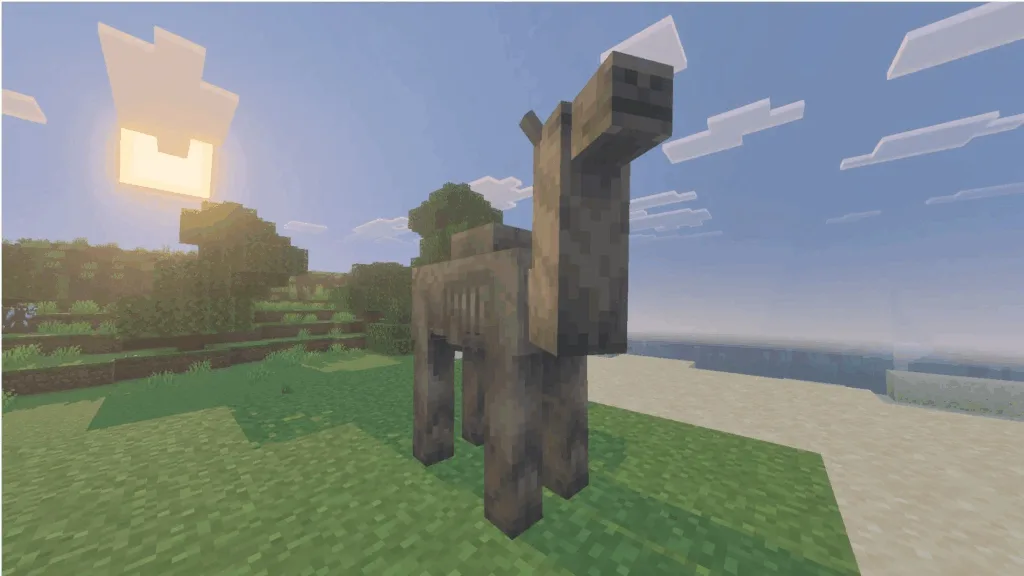
Minecraft‘s latest Bedrock 1.21.130.24 beta just dropped on October 29, 2025, bringing exciting Mounts of Mayhem features including undead camel husks and the new Parched skeleton variant. Whether you’re gaming on Xbox, PlayStation, mobile, or PC, this preview build lets you test upcoming content before official release while helping Mojang squash bugs. Ready to ride zombie camels and battle new skeleton types? This comprehensive guide covers installation steps for every supported platform.
Minecraft Beta Reference
| Platform | Availability | Installation Method |
|---|---|---|
| Xbox One/Series X|S | ✅ Yes | Xbox Store/Game Pass Library |
| PlayStation 4/5 | ✅ Yes | In-game Preview Button |
| Android | ✅ Yes | Google Play Beta Program |
| iOS | ✅ Yes | TestFlight App (Limited Slots) |
| Windows 10/11 | ✅ Yes | Microsoft Store/Launcher |
| Nintendo Switch | ❌ No | Not Supported |
| Java Edition | ❌ No | Separate Snapshot System |
Important: Beta access requires purchased/active Game Pass copy—trial versions don’t qualify.
What’s New in 1.21.130.24
Mounts of Mayhem Preview: Test camel husks (undead camel variants) and the Parched skeleton before official release.
Bug Fixes: Resolves persistent performance issues and gameplay glitches from previous builds.
Mount Improvements: Enhanced riding mechanics and AI behaviors for mounted mobs.
For complete patch notes, visit the official Minecraft feedback site.
Xbox Console Installation (One/Series X|S)
Requirements: Active internet connection + Xbox Game Pass (Standard or Ultimate)
Step-by-Step Process:
- Navigate to Xbox Game Store or Game Pass Library
- Search for “Minecraft Preview” in the search bar
- Select the Preview listing and click “Install”
- Wait for download completion (keep console powered on)
- Launch Minecraft Preview to test new features
Pro Tip: Don’t turn off your console during installation—corrupted files require complete re-downloads.
PlayStation 4/5 Installation
PlayStation users access beta builds directly through the main Minecraft application:
- Open Minecraft from your game library
- Navigate to the left sidebar
- Select the “Preview” button
- Choose “Get PlayStation 4/5 Preview” (depending on your console)
- Click “Download” and wait for installation
- Launch when complete
Note: Preview downloads replace your standard version temporarily. Your worlds remain safe and accessible.
Android Mobile Installation
Android offers the simplest beta access through Google Play’s built-in beta program:
- Open Google Play Store app
- Search for Minecraft or navigate to your installed apps
- Scroll down to the bottom of the Minecraft page
- Tap “Join the Beta” prompt
- Wait for automatic update to 1.21.130.24 beta
Auto-Update: If updates don’t start automatically, manually trigger them in Play Store settings.
For mobile optimization tips, check our Minecraft Pocket Edition performance guide.
iOS Mobile Installation (TestFlight Required)
iOS beta access is more complex due to Apple’s TestFlight requirements and limited slots:
First-Time Users:
- Download TestFlight app from App Store
- Access the Minecraft beta signup link
- Sign up using your Microsoft account
- Wait for confirmation email with TestFlight link
- Click “View in TestFlight” from the email
- Select “Install” in TestFlight app
Existing Beta Users:
- Open TestFlight app
- Find Minecraft Preview listing
- Tap “Update” next to the game
- Wait for 1.21.130.24 download
Critical Warning: iOS slots are limited and reset monthly. Access gets revoked after extended inactivity, so launch the preview 1-2 times monthly to maintain your spot.
Windows 10/11 PC Installation
Windows players have two installation paths depending on whether they’re new to beta testing:
Existing Beta Users (Updating)
Method 1: Microsoft Store
- Open Microsoft Store application
- Navigate to “Games” tab on left sidebar
- Find “Minecraft Preview” in your library
- Click “Update” button next to the listing
- Monitor blue progress ring for completion
If the Update button doesn’t appear, click “Get Updates” in the top-right corner to force-check for available updates.
Method 2: Xbox App
- Launch Xbox app on Windows
- Navigate to installed games sidebar
- Select Minecraft Preview
- Click “Manage” then “Update”
- Wait for installation completion
First-Time Beta Users
- Open Minecraft Launcher (download from Minecraft.net if needed)
- Log in with your Microsoft account
- Select Minecraft Bedrock from left sidebar
- Expand the dropdown menu next to the green “Play” button
- Change from “Latest Release” to “Latest Preview”
- Click “Play” to download 1.21.130.24 beta
First installations take longer—be patient while files download and install.
For PC performance optimization, explore our Minecraft Windows optimization guide.
Beta vs. Release: What You Need to Know
Advantages:
- Early access to upcoming features and mobs
- Help shape final release through feedback
- Exclusive testing of experimental gameplay
Disadvantages:
- Potential bugs and crashes
- Worlds created in beta may not transfer to release versions
- Cannot play with friends on standard release version
Recommendation: Create separate backup worlds specifically for beta testing. Don’t use your main survival world in preview builds.
Providing Valuable Feedback
Mojang relies on beta testers to identify bugs and balance issues. Report problems through:
- In-game feedback button
- Official Minecraft Feedback site
- Minecraft community forums
Quality bug reports include:
- Detailed reproduction steps
- Screenshots/videos of the issue
- Device specifications
- What you expected vs. what happened
Frequently Asked Questions
Will my regular Minecraft worlds be deleted when I install the beta?
Can I play multiplayer with friends who have the standard release version?
Unfortunately, no. Beta/preview builds operate on separate version numbers and cannot connect to servers or realms running the standard release version. You can only play with other players who have installed the same 1.21.130.24 beta build. This isolation prevents experimental features from causing issues on stable servers. If you want to play with friends, everyone needs to either install the beta together or stick with the release version. For testing with friends, consider creating a dedicated beta world for your group.