NAM250/5 (45.3/50 ov)
 IRE
IRE AVL
AVL MNC
MNC RAY
RAY ELC
ELC GMB
GMB ZMB
ZMB NGA
NGA LES
LES CAG
CAG BOL
BOL COMO
COMO SAS
SAS FCA
FCA FCU
FCU KOE
KOE S04
S04 MOZ19
MOZ19 UGA23/0 (0.5/20 ov, target 20)
 NZ180/5
 IND181/6 (19.5/20 ov, target 181)
 Ipswich1
 Nottm Forest1
 Alavés1
 Málaga1
 WA71/3 (11.2/50 ov, target 372)
 NSW371/8
 DEN
DEN KUW
KUW KENYA
KENYA QAT
QAT SWD-W
SWD-W EPR-W
EPR-W TTN-W
TTN-W WPR-W
WPR-W NZ-A135/3 (41 ov)
 IND-A113
 DHA
DHA RAJ
RAJ MYMS
MYMS CHATT
CHATT RAN
RAN BAR
BAR SYL
SYL KHU
KHU MEX-W
MEX-W ARG-W
ARG-W UAE
UAE NED
NED PAK
PAK ENG
ENG IND-W
IND-W ZIM-W
ZIM-W AFG170/3 (34.3/50 ov, target 170)
 ZIM169
 CHE0
CHE0 DYI0
DYI0 CHO1
CHO1 QIN0
QIN0 HEN1
HEN1 BEI0
BEI0 LIA1
LIA1 ZHE0
ZHE0 QWC1
QWC1 YUN0
YUN0 SHX0
SHX0 Shanghai Shenh0
 TIG0
TIG0 SHP0
SHP0 WTT1
WTT1 SHT3
SHT3 M05
M05 SVW
SVW RBL
RBL ELV
ELV Torino3
 Monza2
 Brest1
 Nice2
Nice2 Stuttgart2
 Gladbach3
 Al Ahli4
 Al Khaleej1
Google expanded Gemini in Chrome to all U.S. Android users as it rolled out mobile Auto Browse, turning part of everyday web navigation into an AI-assisted workflow for the Chrome ecosystem.
The earliest inciting moment in this arc happened when the company announced that Gemini’s Chrome integration reached the wider Android audience across the United States. That announcement shifted the conversation from “AI as a side panel” to “AI as a browsing function” inside the browser on mobile.
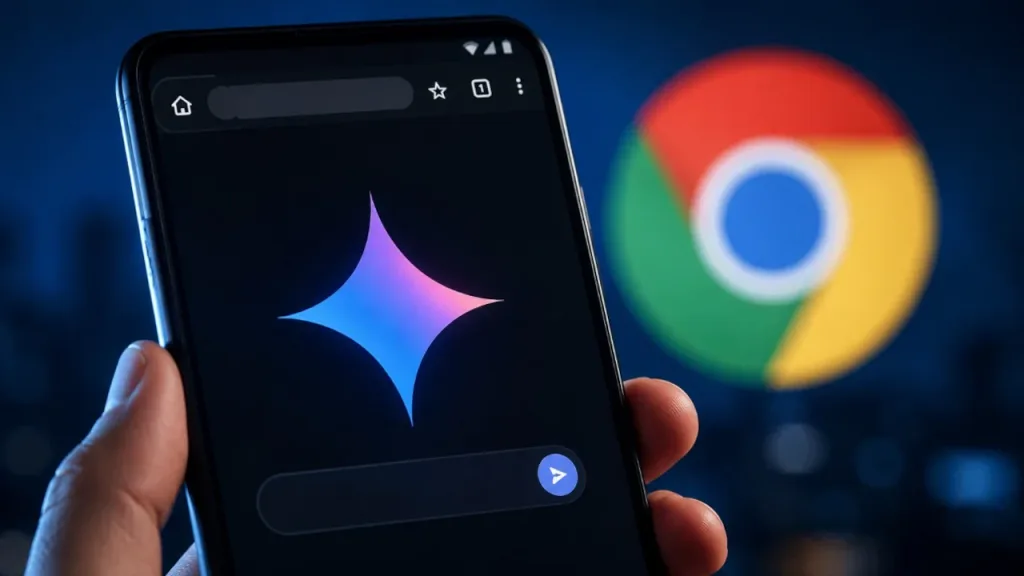
Gemini in Chrome Rolls Out to All U.S. Android Users
Here’s the thing: the change is not limited to a small test group, because Google announced the expansion of Gemini in Chrome to all users in the United States using Android devices.
That matters for scale, since the Android installed base is where Chrome’s mobile behaviors are most common in daily life—search, reading, shopping comparisons, and quick lookups.
Coverage helped spotlight the timing and the direction, even though some details about how users reach enhanced capabilities through the Android ope
This rollout targets that friction by bringing Gemini deeper into Chrome’s browsing flow rather than treating it as a separate experience. Google’s framing centered on efficiency, specifically designed to enhance web browsing within the Chrome ecosystem on mobile.
The First-Time Mobile Feature
The turning point was the introduction of Auto Browse to mobile platforms for the first time, bringing a more automated browsing style into Android. Google’s update is designed to enhance web browsing efficiency inside Chrome on mobile, so the browser becomes a place where Gemini can help with the “in-between” tasks—moving across pages, reducing manual back-and-forth, and keeping context aligned.
That said, Auto Browse’s practical impact depends on how seamlessly it integrates with the Chrome UI and user control. If the feature is positioned as “one less thing to do,” it can become a default habit, but if it feels opaque, it risks user trust. The early narrative around the feature highlights that it is meant to work inside the Chrome ecosystem, not beside it.
Google’s AI Browsing Strategy: Efficiency Over Extra Interfaces
In the early 2020s, AI assistants mostly lived in chat windows, while browsing remained a user-driven act of copy, paste, tab switching, and repeated searches. Chrome is now taking a different approach: bringing assistant intelligence closer to the task so users spend less time coordinating the workflow. For more detail, see VentureBeat AI.
This is aligned with how Gemini is being presented in the browser context—efficiency inside the Chrome ecosystem on mobile.
Coverage also pointed attention to how users can access the enhanced Gemini capabilities directly through their Android ope
Even so, the strategic direction is clear—AI should reduce the “mechanical effort” of browsing while still keeping the browser in charge. That’s where the protagonist shifts from the user tapping around to the Chrome experience orchest
Higher Adoption, More Competition for Mobile Browsing
The present-day implication is that Chrome Opens an Android-first path for Gemini-driven browsing, which could accelerate adoption simply because the feature sits where users already spend time. If Auto Browse proves genuinely helpful, Google may expand capability surfaces, tighten controls, and increase personalization, especially across reading and research flows.
That said, competitors will respond where it matters: mobile browsers and assistant integrations that can interpret page context and automate multi-step tasks. This is not just a feature rollout; it’s a bet that the best AI assistant is the one that disappears into your routine while still being controllable. In the next iteration, the winning experience will be the one that feels fast, predictable, and safe—because on Android, every extra tap counts, and every unwanted behavior becomes uninstall behavior. For more detail, see OpenAI Blog.
Related Articles
- How to Build a Simple AI Web Scraper with Python (2026)
- OpenAI Launches ChatGPT for Teens to Prevent Kids from
- Claude Haiku 5 Rumors: What's Actually Confirmed vs. Pure Speculation
FAQs
How does Gemini in Chrome work after Chrome Opens to U.S. Android users?
After Chrome Opens, Gemini features are integrated into the Chrome browsing workflow for U.S. Android users, with the update introducing Auto Browse on mobile to improve browsing efficiency within Chrome.
What is Auto Browse on mobile?
Auto Browse is a feature introduced to mobile platforms for the first time, intended to help streamline web browsing inside the Chrome ecosystem using Gemini-driven assistance.
Can users access Gemini capabilities on Android directly?
Secondary coverage has discussed access to enhanced Gemini capabilities through the Android ope
Is this expansion limited to certain devices or plans?
Google announced the expansion to all users in the United States using Android devices, indicating broad rollout rather than a narrow pilot group.
Closing Takeaway
Google’s Chrome Opens expansion turns mobile browsing into an AI-supported workflow by bringing Gemini and Auto Browse deeper into Chrome, setting up the next wave of assistant-driven navigation. SEO_
Gemini in Chrome Rolls Out to All U.S. Android Users
The first major turning point happened when Google said Gemini in Chrome would reach all U.S. users on Android devices. That scope change matters more than a feature checklist because it removes the “wait for availability” friction that typically slows adoption, especially for consumer browsing habits.
The update’s impact was flagged by coverage, which helped set the narrative that this is about mobile browsing efficiency inside Chrome, not a separate AI app experience. Here’s the thing: mobile users measure value in seconds, and AI features can either save time or add steps.
The conflict is that most AI integrations arrive with prompts, extra UI, and onboarding—while Chrome users mostly want the next page, not the next screen. In this rollout, Google’s framing focused on making Gemini feel native to browsing efficiency within the Chrome ecosystem on mobile.
The First-Time Mobile Feature
The second turning point was the introduction of Auto Browse to mobile platforms for the first time. This is the moment the story shifts from “Gemini is available” to “Chrome can behave differently,” because Auto Browse is meant to enhance browsing efficiency rather than replace browsing.
That said, the most important question is what “Auto Browse” actually changes in the user flow. Google’s update positions it as an in-browser capability designed to improve how people navigate and complete web tasks on mobile, which is where Chrome’s UI constraints are tight and time matters. If the feature works as intended, it reduces the repeated back-and-forth that often happens when users bounce between pages to confirm details, compare options, or assemble context before acting.
Context: Why Chrome’s Android Timing Changes the AI Interface
In the early 2020s, browser-based AI mostly lived as a chat experience layered next to search. Now the protagonist is Chrome on Android, and the stakes are whether AI can become a practical browsing layer instead of a curiosity users toggle once.
Google’s strategy aligns with how Android users actually work: quick lookups, iterative reading, and mobile research that rarely ends on a single tab.
As Google DeepMind and other labs have pushed multimodal and agentic ideas forward, distribution has become the real differentiator—where the AI can meet you without you going to it first.
If Gemini capabilities are surfaced through the Android ope
The success condition for Chrome Opens this Gemini integration is trust earned through speed, clarity, and predictable outcomes—especially on a small screen where users can’t easily audit every internal step.
Auto Browse is the first major signal that Google intends Gemini to function as a mobile browsing workflow, not just an add-on.
A Mobile AI Workflow, or a UI Detour?
The present-day implication is straightforward: Google is making Gemini feel like part of browsing for Android users in the U.S. and that sets a new expectation for competing assistants.
The feature is specifically designed to enhance web browsing efficiency within the Google Chrome ecosystem on mobile, and that puts pressure on other browser-adjacent AI experiences to justify their extra steps. Once a feature reaches “all U.S.
Android users,” experimentation usually shifts to optimization—response quality, latency, and how gracefully the assistant handles multi-page tasks.
Over time, we expect Chrome Opens to become less about availability and more about workflow depth, where Auto Browse either proves it can reliably cut time-to-decision or becomes another button users ignore when it gets in the way.
For developers and content creators, the next wave will also be about how AI-assisted browsing changes page discovery, attribution, and user intent.
That’s where the story likely resolves: Gemini’s win won’t be in marketing claims, but in whether users feel faster and more confident when Chrome does the navigating work.
FAQs
What does “Chrome Opens” mean in this Gemini rollout?
It refers to Google’s move to make Gemini capabilities available through Chrome on Android, starting with U.S. Android users as the rollout reaches broader availability.
What is Auto Browse on mobile?
Auto Browse is a mobile feature introduced for the first time alongside Gemini in Chrome, designed to enhance web browsing efficiency within Chrome on Android.
Who gets the Gemini in Chrome update?
Google announced the expansion to all users in the United States using Android devices.
Where do users access the enhanced Gemini capabilities?
Users are described as accessing enhanced Gemini capabilities directly through their Android ope
What it means for the browser race
Chrome is trying to turn Gemini into a browsing workflow on mobile, and Auto Browse is the bet that AI can reduce taps, not add them. Chrome Opens CRITICAL: Chrome Opens SEO_
Android users and added Auto Browse to mobile, aiming to boost browsing efficiency in Chrome. Stay tuned for more on Chrome Opens.
Was this article helpful?
Your feedback directly improves future articles on this site.