
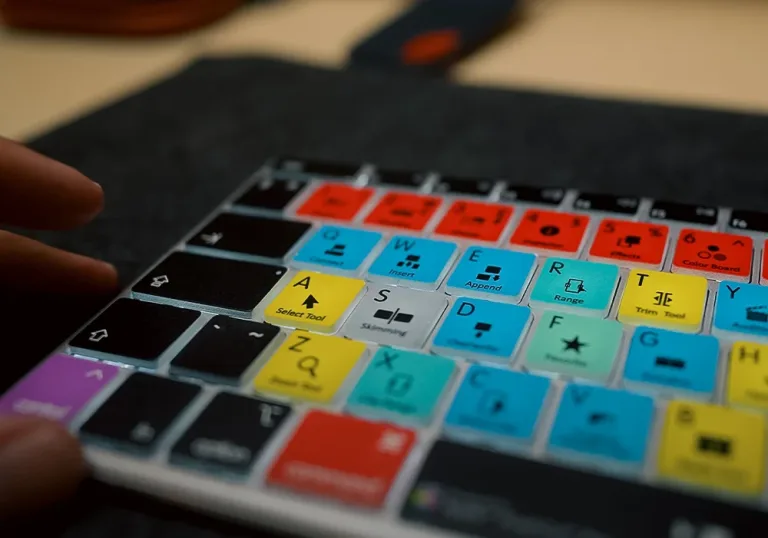
Apple announced the official Final Cut Pro shortcut update for MacBook Pro on Wednesday, September 16, 2026, putting faster editing at the centre of its latest Mac workflow.
The supplied product details are based on leaks and supply-chain reports, not yet officially confirmed, so editors should verify final mappings in Apple’s release notes. The updated MacBook Pro series was originally launched on October 24, 2025, with a reported starting
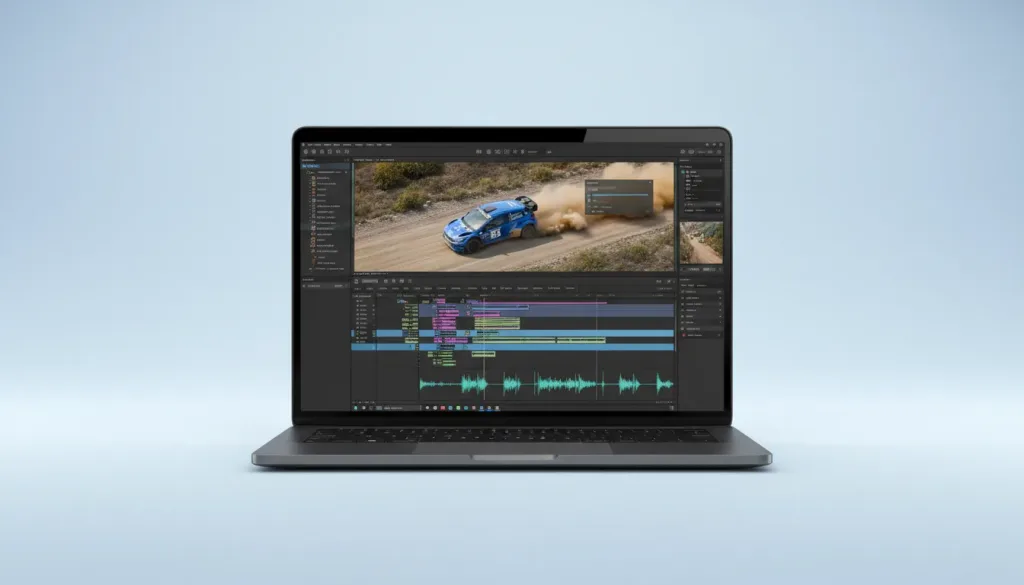
Which Final Cut Pro shortcut should every MacBook Pro editor learn first?
The most useful starting point is Command-B, which adds a cut at the playhead. It lets editors split a clip without selecting the Blade tool manually, making it ideal for removing pauses, tightening interviews and cutting unwanted frames.
The second essential shortcut is A, which returns Final Cut Pro to the Select tool. This matters because fast editing often involves switching between cutting and moving clips. Pressing A prevents accidental edits when an editor needs to reposition footage. Use Command-Z to undo the last action. Final Cut Pro supports repeated undo actions, so editors can quickly step back after an incorrect cut, trim or transition.
How can I move around the Final Cut Pro timeline faster?
Shift-Z is the fastest way to fit the entire project timeline inside the available window. It is especially useful when a project contains many scenes and the editor has zoomed deeply into one section. For detailed trimming, use Command-Plus to zoom into the timeline and Command-Minus to zoom out.
A tighter view helps with frame-level edits, while a wider view gives better control over the project structure. The Up Arrow and Down Arrow keys also help editors jump between edit points. That makes it easier to review cuts without dragging the playhead manually across the timeline. This workflow pairs well with broader Apple coverage, including our guide to the iPhone Pro, because both rely on reducing friction between a creator and the final output.
Which Final Cut Pro shortcuts improve audio and clip organisation?
Option-W inserts a gap clip at the playhead, creating space without forcing editors to move several clips manually. This is useful when adding narration, a title card or a new scene between existing sections. Press S to toggle snapping.
Snapping helps the playhead and clips align with edit points, markers and other timeline elements. Turning it off can help when an editor needs more precise free-form placement. The M key adds a marker at the playhead. Markers can identify music changes, interview highlights, visual effects cues or moments that need approval. Naming markers gives collaborators a clearer editing map. Editors working on tutorials or product videos can also use Control-Shift-T to add a basic title, then refine its design in the Titles browser. For more detail, see Gizmodo.
hardware-is-designed-for-final-cut-pro”>What MacBook Pro hardware is designed for Final Cut Pro?
The baseline MacBook Pro configuration reportedly includes 16 GB of unified random-access memory (RAM) and storage beginning at a 512 GB solid-state drive (SSD). The latest processor is reportedly the Apple M5 Pro chip, while the display is reportedly a 14.2-inch Liquid Retina XDR panel.
Apple reportedly rates battery life at up to 22 hours of video playback. These specifications point to a portable editing system, although demanding projects still benefit from external storage and proxy media. The reported $1,999 starting Apple Claims Pro camera security claims before choosing an ecosystem.
What should Final Cut Pro users do after learning these shortcuts?
Start with a short practice project and use Command-B, A, Shift-Z, M and Option-W repeatedly until they become automatic. Then add Command-Z, timeline zoom controls and snapping to build a complete editing rhythm.
The September 16 shortcut update gives Apple a chance to make Final Cut Pro more approachable without removing its professional controls. Users tracking Apple’s wider software direction can also read our coverage of the Google Book Pre-Order story for a broader view of the company’s product ecosystem.
The best Final Cut Pro shortcut is the one that keeps your hands on the MacBook Pro keyboard and your attention on the story.
FAQs
Is Final Cut Pro available on MacBook Pro?
Yes, Final Cut Pro runs on MacBook Pro models that meet Apple’s supported macOS and hardware requirements.
What is the most important Final Cut Pro shortcut?
Command-B is the most important starting shortcut because it cuts a clip at the playhead without requiring the Blade tool.
Is 16 GB of RAM enough for Final Cut Pro?
The baseline MacBook Pro is reportedly listed with 16 GB of unified RAM, which can suit many editing tasks, while larger projects may benefit from more memory and proxy workflows.
What does Shift-Z do in Final Cut Pro?
Shift-Z fits the complete timeline within the editing window, helping users move quickly between detailed cuts and a project-wide view.
Was this article helpful?
Your feedback directly improves future articles on this site.