WhatsApp just rolled out a small but genuinely useful update — you can now add a member tag to your profile inside any group. No more awkward “who is this?” moments in large chats.
WhatsApp Member Tags: Quick Overview
| Detail | Info |
|---|---|
| Feature | Member Tags in Group Chats |
| Platform | WhatsApp (Android & iOS) |
| Where It Shows | Your profile inside each group |
| Tag Examples | Designer, Admin, Morning Walker, Tech Guy |
| Visibility | Group members only |
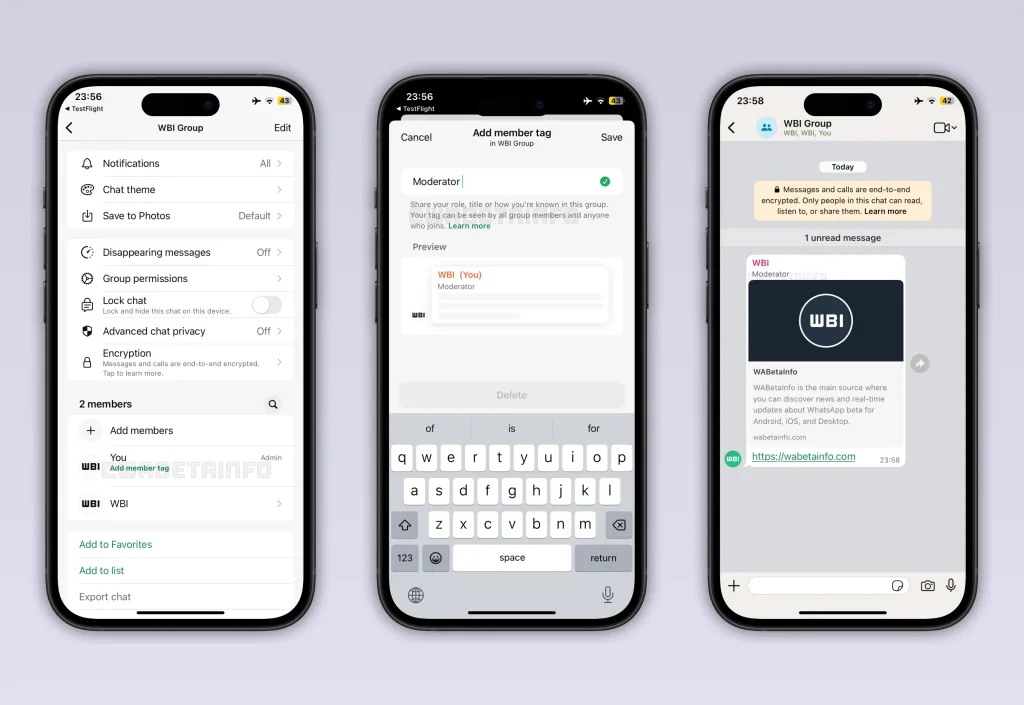
What Are WhatsApp Member Tags?
Think of it as a mini bio — just for that group. Instead of people guessing who you are from your display name, you can label yourself with a short, custom tag that gives context instantly. A tag like “Team Lead” in a work group or “Organiser” in a community chat tells everyone exactly who they’re dealing with — without a single message.
This is especially handy in large groups where dozens of members share similar names or profile pictures. Read more about WhatsApp’s latest features on TechnoSports.
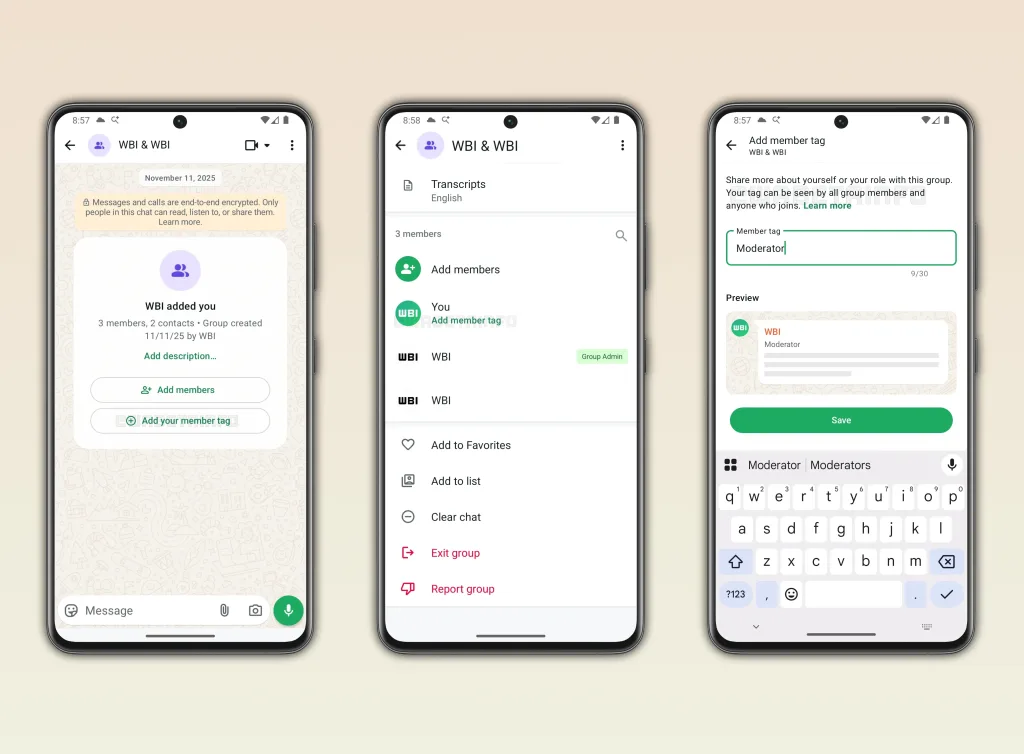
How to Add a Member Tag on WhatsApp
Adding a tag takes under 30 seconds. Open any group chat, tap the group name at the top, scroll down to the Members section, tap your name, and select “Add member tag.” Type your label and save. It’s that simple.
Each tag is group-specific — so your “Cricket Captain” tag in one group won’t show up in your office chat. For more tips on getting the most out of WhatsApp, check TechnoSports’ WhatsApp guides.
It’s a small tweak, but in big groups, context is everything — and WhatsApp just made it a lot easier to provide it.