
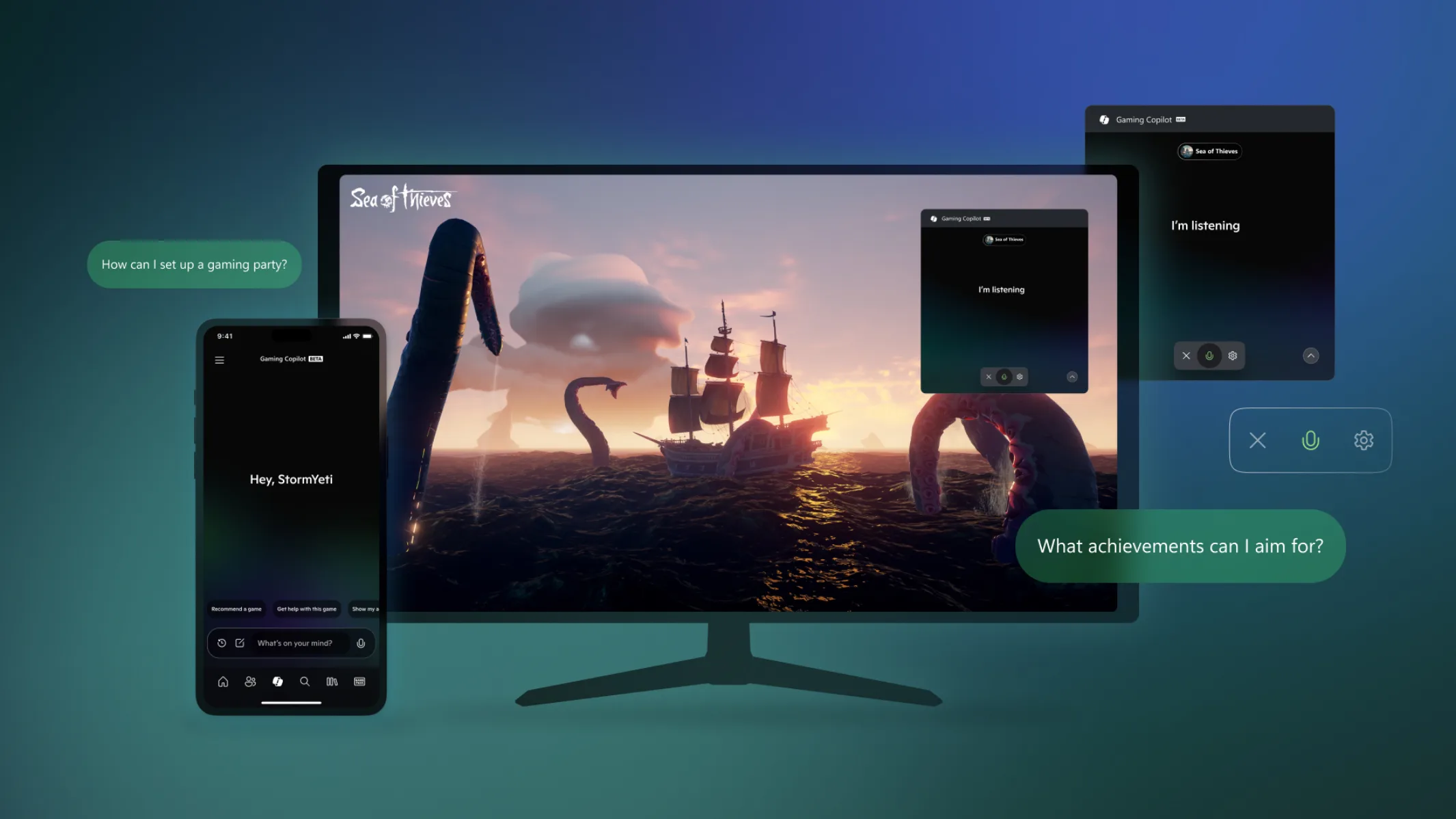
Microsoft’s Gaming Copilot AI is capturing screenshots and gameplay data to train its AI models—and the feature is enabled by default on Windows 11 PCs. A ResetEra user discovered their network traffic was sending gameplay captures, including an unreleased game under NDA, back to Microsoft for model training purposes, sparking major privacy concerns across the gaming community.
Table of Contents
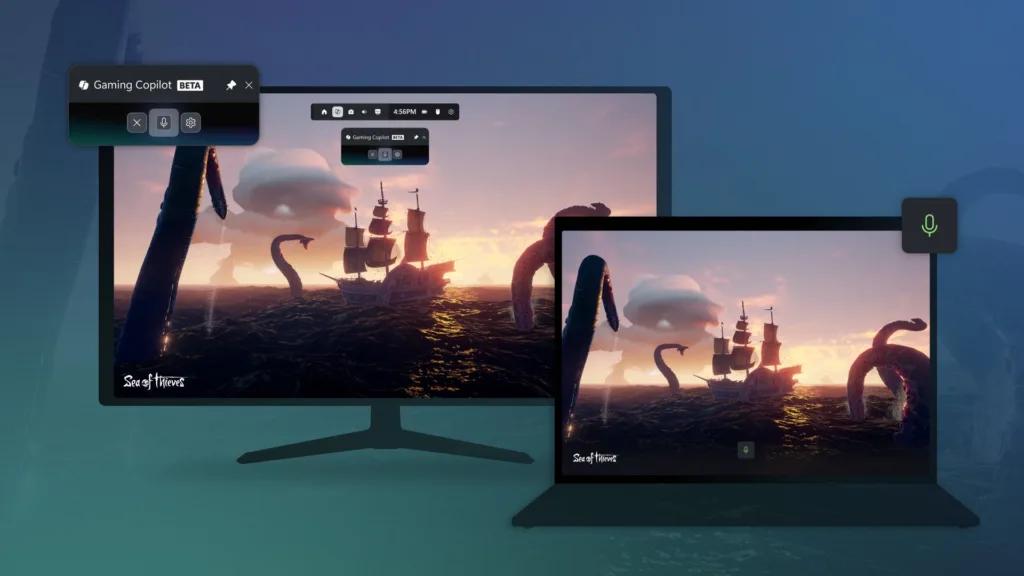
Microsoft Gaming Copilot Trains AI on Gameplay
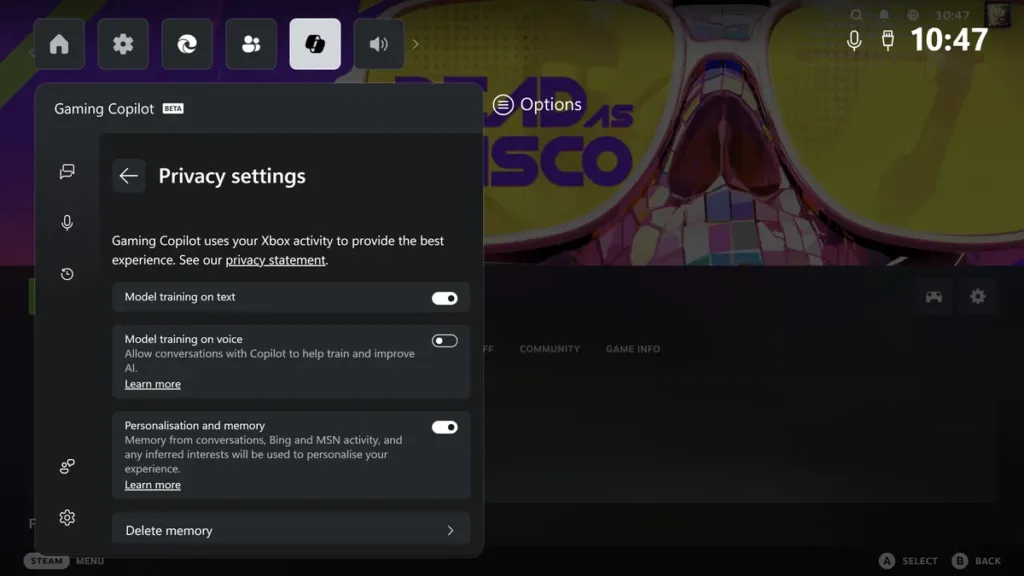
The Gaming Copilot feature, automatically installed with Windows 11, captures screenshots and extracts text using OCR (Optical Character Recognition) technology. The “Model training on text” setting is enabled by default in Game Bar’s privacy settings, meaning users are opted in without explicit notification unless they manually dig into settings.
Privacy Settings Breakdown
| Setting | Default State | What It Captures |
|---|---|---|
| Model training on text | Enabled | Screenshots, OCR text extraction |
| Model training on voice | Disabled | Vocal conversations during gameplay |
| Personalization and memory | Enabled | Bing/MSN data, inferred interests |
| Conversation history | Enabled | Gaming Copilot chat interactions |
How to Turn It Off
You can disable these settings by pressing Windows+G to open Game Bar, navigating to Gaming Copilot, clicking the Settings gear in the bottom left corner, and then accessing Privacy Settings. There you’ll find options to turn off model training on both text and voice, personalization features, and conversation tracking.
Multiple tech publications confirmed the setting was enabled by default on their systems before they manually disabled it. While Microsoft’s FAQ states that screenshots are not stored or used for model training and captures only occur when actively using Copilot, the confusion persists due to vague naming and default opt-in behavior.
Privacy Concerns and Industry Context
The controversy intensifies because the setting name “Model training on text” doesn’t clearly communicate that Microsoft is actively screenshotting gameplay and scraping on-screen text. Without proper context, users might interpret this as referring to text entered into Gaming Copilot prompts rather than comprehensive gameplay capture.
This issue comes amid broader Microsoft privacy controversies, including accusations of using online Word and Excel content for AI training unless users opt out, and the controversial Recall feature that screenshots sensitive data like credit cards and passwords.
Microsoft’s Recent Gaming Disappointments
The Gaming Copilot controversy adds to a string of recent Microsoft disappointments for players, including Xbox Series console price increases (the second this year), Xbox Game Pass price hikes of 50%, shutdowns of discount and reward programs, and the potential introduction of Cloud Gaming with ads.
For competitive gamers, streamers, and professionals working with unreleased titles, the default data collection raises serious concerns about confidentiality, intellectual property protection, and competitive advantage.
What Gaming Copilot Actually Does
When enabled, Gaming Copilot serves as an AI assistant that recognizes games you’re playing, analyzes on-screen content, and responds to voice or text prompts with tips, walkthrough help, or personalized recommendations. The feature links to your Xbox/Microsoft account and can reference Xbox activity, achievements, and play history to personalize responses.
For more information on Microsoft’s Gaming Copilot and Windows 11 privacy settings, review your Game Bar settings immediately to ensure your gaming sessions aren’t being used for AI training without your knowledge.
FAQs
Is Microsoft Gaming Copilot capturing my gameplay by default?
Yes, the “Model training on text” setting is enabled by default and captures screenshots with OCR text extraction for AI training.
How do I disable Gaming Copilot’s data collection?
Press Windows+G, go to Gaming Copilot settings (bottom left gear icon), then Privacy Settings to disable model training options.