
 SA329
SA329 AUS330/4 (90 ov)
 BAN245/5 (87 ov)
 WI
WI SJ2
SJ2 COL2
COL2 SEA0
SEA0 HOU1
HOU1 VAN4
VAN4 SD1
SD1 UAE
UAE OMA
OMA ENG
ENG SL
SL AFG
AFG ZIM
ZIM Al Khaleej
 Al Hazem
 Frosinone
 Lecce
Lecce Al Nassr
 Al Kholood
 Al Riyadh
 Al Qadsiah
 Fiorentina
 Atalanta
 GEN2
GEN2 JUV0
JUV0 MON1
MON1 NAP4
NAP4 MIL2
MIL2 BOL4
BOL4 PAR0
PAR0 UDI0
UDI0 WELL
WELL OTAGO
OTAGO SIKM184 & 112/5 (43 ov, target 212)
 NAGA187 & 208
 JHK131/4 (47 ov)
 DELHI515/5d
 ODSA194
 SVCS13/0 (5 ov)
 BRODA616
 J & K303 & 8/1 (6 ov) (f/o)
 CHD685/5d
 HP340/3 (104 ov)
 CGR216/8 (95 ov)
 AP231
AP231 HYD380
 PNJB431 & 57/0 (24 ov)
 KNTKA490/9d
 TPURA194 & 98/3 (38 ov)
 KER141 & 53/4 (20 ov, target 408)
 BENG350 & 198
 NZ
NZ IND
IND NAM
NAM IRE
IRE MR-W
MR-W ST-W
ST-W MS-W
MS-W HH-W
HH-W BH-W
BH-W SS-W
SS-W IND-W133/2 (17/50 ov, target 132)
 ZIM-W131
 MIS153/5
 TOK111 (19.3/20 ov, target 154)
 LIONS204/1 (18/20 ov, target 199)
 EASTN198/6
 BRB81 (12.1/20 ov, target 178)
 VAG177/7
 POA145/7
 SPR148/4 (16.5/20 ov, target 146)
 DEN120
 QAT68 (16.2/50 ov, target 121)
 Abha
Abha Al Ittihad
 NorthEast
 Bengaluru
 Al Diriyah
 Neom SC
 VEN0
VEN0 INT2
INT2 FC Goa1
 SCD1
SCD1
I used to think that a computer only needed attention when something went wrong. If Windows started taking longer to boot, I would put up with it. If my storage filled up, I would delete a few large files. If too many programs were running in the background, I would close them manually. None of these problems seemed serious enough to spend time fixing.
Eventually, though, all those little issues started adding up. My PC took longer to start, I had less free storage than I expected, and there always seemed to be something running in the background. Even simple tasks occasionally felt less responsive than they should. It wasn’t that my computer had suddenly become unusable. It just didn’t feel as fresh as it once did.
That’s when I started using Advanced SystemCare as part of my regular PC maintenance. Rather than waiting for a noticeable problem and trying to figure out what caused it, I wanted something that could help me keep things under control in the first place.
After spending some time with it, I found that the biggest benefit wasn’t one dramatic speed boost. It was the feeling that I didn’t have to constantly worry about what was building up on my PC.
My First Step: Finding Out What Was Actually Slowing Things Down
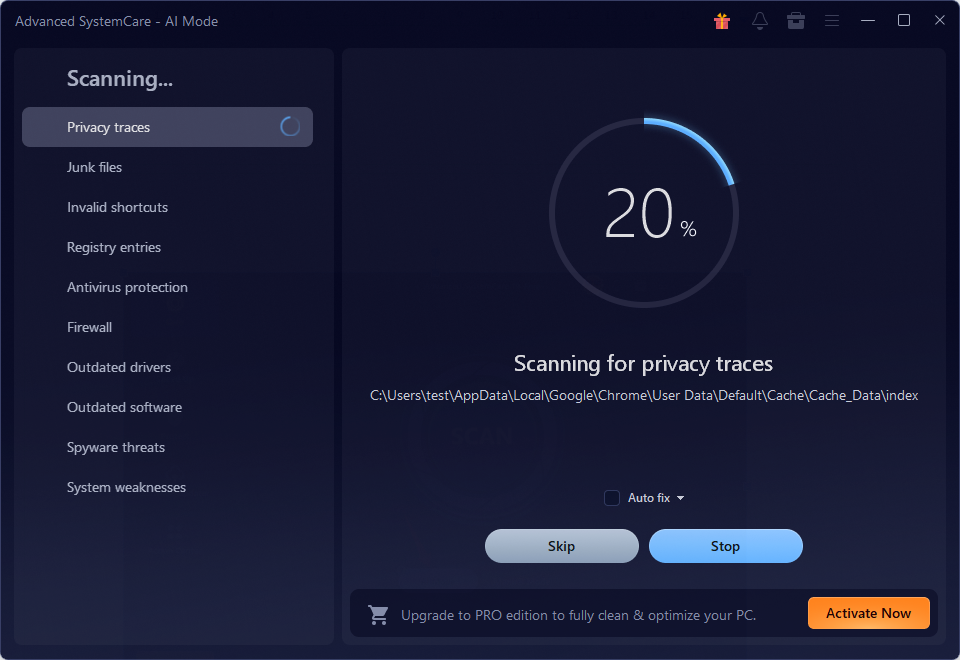
The first thing I did after installing Advanced SystemCare was run its AI Mode.
I liked this approach because I didn’t have to decide beforehand which part of Windows needed attention. The scan checks different areas of the system and looks for junk files, unnecessary items, privacy traces, and other issues that can affect everyday performance. The current version’s AI mode can also create a personalized cleaning plan based on the condition of the PC and previous optimization habits.
The results gave me a better idea of what was going on behind the scenes.
There were temporary files I didn’t need, browser-related data, and other leftovers that had accumulated simply because I had been using the computer for a long time. None of them seemed important individually, but seeing them together made me realize how easy it is to ignore this kind of digital clutter. I clicked Fix, and Advanced SystemCare cleaned the selected items and applied the recommended optimizations.
That became my starting point.
Cleaning Up the Files I Never Think About
One of the features I found myself using most often was the junk file cleaner.
Windows and everyday applications constantly create temporary files, caches, logs, installation leftovers, and other data. I don’t normally think about them because they aren’t visible when I’m working. Over time, however, they can consume a surprising amount of storage. Advanced SystemCare scans these areas and helps remove unnecessary files. The junk cleaner handles the small pieces of clutter that are easy to overlook.
Turbo Boost When I Need More Resources
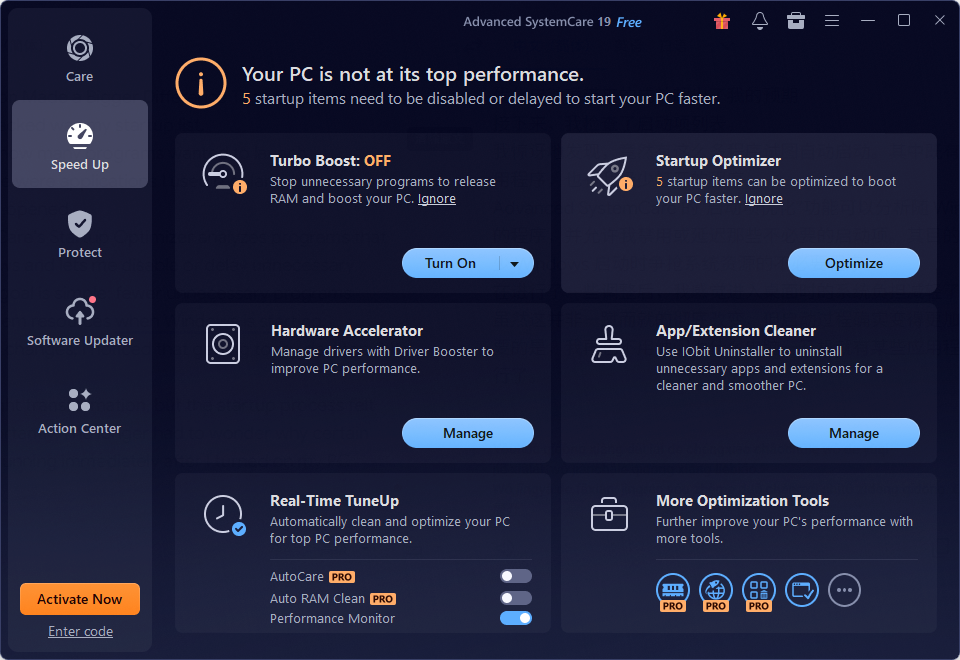
There are also times when I want my PC to focus on one particular task.
For example, when I’m gaming or working with demanding software, I don’t necessarily need every background service running at full capacity.
That’s where Turbo Boost comes in. Advanced SystemCare provides different modes, including Work Mode and Game Mode, which can temporarily shut down unnecessary services and background applications to free up system resources.
I found this more convenient than manually closing programs every time I wanted to concentrate resources on a specific task.
It’s a small change to my routine, but it’s one of those features that becomes useful once it is already there.
Startup Optimization Made a Bigger Difference Than I Expected
The next thing I checked was my startup list.
I was surprised by how many programs wanted to launch automatically. Some were applications I used regularly, but others were things I rarely opened.
Advanced SystemCare’s Startup Optimizer analyzes programs that launch with Windows and lets me disable or delay unnecessary startup items. The goal is simple: fewer unnecessary programs competing for system resources when Windows is starting.
After making a few changes, I noticed that getting to my desktop felt less crowded. It wasn’t an overnight transformation, but the startup process felt cleaner. More importantly, I no longer had to wonder why certain applications were running immediately after I turned on my PC.
Real-Time TuneUp: The Feature I Didn’t Expect to Use
I initially thought I would only open Advanced SystemCare when I wanted to clean my PC.
That changed after I started using Real-Time TuneUp. The feature monitors system resource usage, including RAM and CPU, and can optimize resources in the background.
For me, this was useful during busy work sessions. I often have a browser with too many tabs, an editor, messaging software, and several smaller applications open at the same time. Instead of constantly checking Task Manager to see what is consuming resources, I can let the optimization tools handle some of the routine housekeeping.
It’s not something I notice every minute—and that’s actually a good thing. I don’t want an optimizer constantly interrupting me. I prefer when it quietly does its job.
Privacy Is Another Part of PC Maintenance
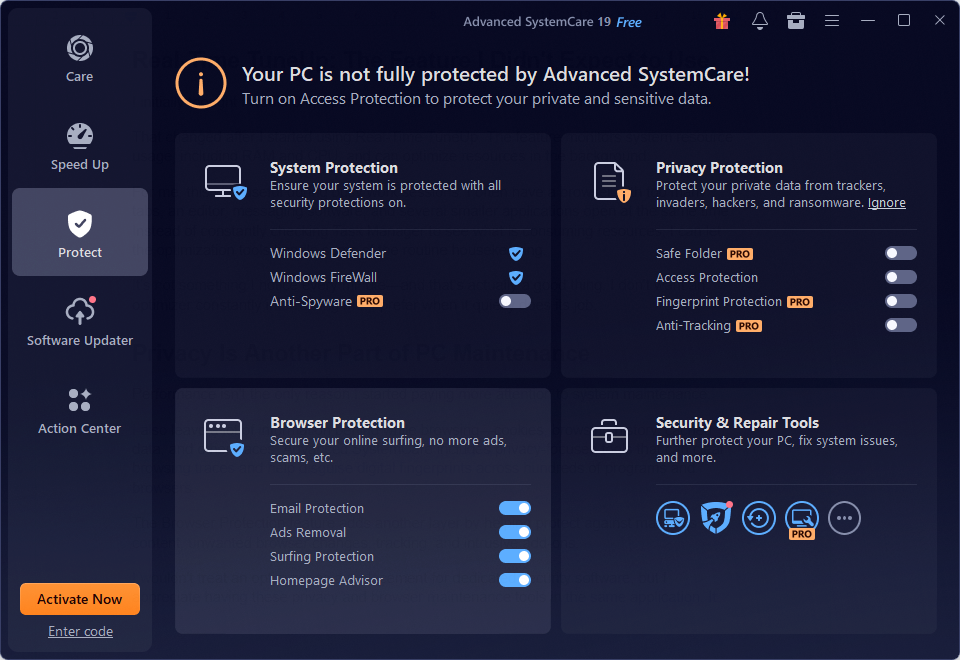
Performance isn’t the only reason I started paying more attention to system maintenance.
I also leave a lot of information behind while browsing—cookies, browsing history, cached data, and other traces. Advanced SystemCare includes privacy-focused tools that can clear browsing traces and help disguise digital fingerprints across hundreds of programs and browsers.
The Browser Protection feature adds another layer by helping protect against malicious content, unwanted browser changes, tracking, and intrusive add-ons.
I wouldn’t treat an optimizer as a replacement for dedicated security software, but I appreciate having these privacy and browser maintenance tools in the same application. It means I don’t have to look through several different utilities whenever I want to do some basic housekeeping.
What I Like About the All-in-One Approach
After using Advanced SystemCare for a while, I realized that convenience is probably its biggest strength.
I could use Windows’ built-in tools to manage startup applications. I could manually delete temporary files. I could check Task Manager for resource usage. I could search for large files myself. And I could clear browser data through each individual browser.
The problem is that I probably wouldn’t do all of that regularly.
Advanced SystemCare puts these maintenance tasks in one place. Its current feature set includes a registry cleaner, disk cleaner, app and extension cleaner, startup optimizer, real-time tune-up, Turbo Boost, Internet Boost, privacy protection, and browser protection.
That makes regular maintenance feel much less like a project.
My Overall Experience
The biggest change for me wasn’t seeing a particular number jump on a performance test. It was simply knowing that my PC was being looked after more consistently.
Instead of waiting until storage becomes a problem or startup becomes painfully slow, I can run a scan, see what needs attention, and clean things up before they become annoying. That’s a much more practical way for me to maintain a computer.
Of course, Advanced SystemCare can’t turn an old PC into a brand-new machine, and the results will depend on the hardware and condition of each system. I also wouldn’t recommend blindly changing every setting without checking what it does. For me, the best results came from using the automatic tools of the PC cleaner for routine maintenance and making more specific changes when I knew what I wanted to improve.