
OPPO ColorOS 16: Master Your Gallery
Drowning in digital clutter? OPPO’s ColorOS 16 update transforms your gallery into a powerhouse. Take control with:
- Time Sync: Fix incorrect metadata instantly.
- Album Stealth: Hide private folders from view.
- Batch Favorites: Organize massive hauls with one tap.
- Smart Scan: Extract text from any image effortlessly.
Stop scrolling, start curating. Your digital memories, finally under your absolute command.

Samsung One UI 10: The Future Revealed
Get ready for a massive shift! Rumors suggest Samsung’s upcoming One UI 10, based on Android 18, could launch in 2027. Expect a radical “contextual” redesign and deeper AI integration. The biggest shock? A potential rebrand to “Galaxy OS” and a possible shift toward subscription-based AI tools. Will this change your Galaxy experience? Stay tuned as we track these massive updates.

Samsung One UI 10: Galaxy OS Revolution
Get ready for a massive shift! Samsung’s upcoming One UI 10, launching in 2027, might rebrand as “Galaxy OS.” Expect a radical, context-first interface designed to eliminate app switching. While AI integration hits new heights, prepare for potential subscription models for premium features. Will this redefine your smartphone experience? The future of Galaxy is coming fast—stay tuned for more updates!

Kim Woo Bin’s GIFT: Baseball Magic
Get ready for the ultimate underdog story! Kim Woo Bin stars in GIFT, a thrilling new sports drama about a bottom-ranked high school baseball team. After a mysterious accident, a former pro coach gains a secret ability to transform their game. With heart, humor, and a supernatural twist, this tvN series premieres December 5th. Don’t miss the comeback!

Seo Hyun Jin Mourns Father’s Passing
The K-drama community is in mourning today. Management SOOP officially announced that actress Seo Hyun Jin’s father has passed away. The family is currently preparing for funeral arrangements, though no further details regarding the cause have been released. We ask fans to respect their privacy during this heartbreaking time. Our deepest condolences go out to Seo Hyun Jin and her family.
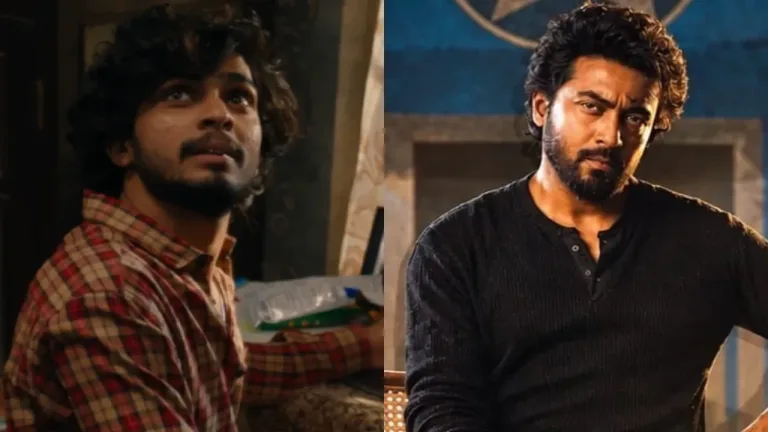
Suriya vs Naslen: Scene Teaser Unleashed!
The Scene teaser is here! Suriya plays Inbaraj, a former officer hunting a mysterious enemy. Naslen makes his chilling Tamil debut as Eeswaran, switching from charming to menacing with a single lollipop. Directed by Jithu Madhavan with a pulse-pounding score by Sushin Shyam, this action-comedy hits theatres on November 6, 2026. Get ready for quirky thrills and intense cinematic showdowns!

Jungkook’s “3D” Hits 300 Million Views!
Jungkook continues his unstoppable solo streak! His hit track “3D” has officially surpassed 300 million YouTube views, joining “Seven” and “Dreamers” in his elite club of mega-hits. Reaching this milestone just over three years after its release proves the song’s incredible staying power. Fans are still looping the video, cementing Jungkook’s status as a global music powerhouse. Keep streaming!

Teja Sajja’s Secret Wedding Plans Revealed!
HanuMan star Teja Sajja is officially tying the knot in December 2026! Keeping it low-key, the actor plans an intimate Rajasthan wedding with his US-based, non-industry fiancée. A grand Hyderabad reception will follow for his Tollywood peers. While he keeps his personal life private, fans can still catch him hosting The Traitors Telugu and starring in Zombie Reddy NXT LVL.