NZ
NZ IND
IND NAM
NAM IRE
IRE MOZ
MOZ UGA
UGA Aston Villa
 Man City
 Rayo
Rayo Elche
Elche GMB
GMB ZMB
ZMB NGA
NGA LES
LES Cagliari
 Bologna
 IPS1
IPS1 NFO1
NFO1 ALA1
ALA1 MCF1
MCF1 TOR3
TOR3 MON2
MON2 BRE1
BRE1 NICE2
NICE2 TAS53/4 (13/50 ov, target 305)
 VIC304/7
 NZ-A96/0 (31 ov)
 IND-A113
 DHA
DHA RAJ
RAJ MYMS
MYMS CHATT
CHATT RAN
RAN BAR
BAR SYL
SYL KHU
KHU UAE
UAE NED
NED PAK
PAK ENG
ENG IND-W
IND-W ZIM-W
ZIM-W AFG170/3 (34.3/50 ov, target 170)
 ZIM169
 DOLPH56/0 (3.5/8 ov, target 56)
 SWD51/4 (8/8 ov)
 WSW1
WSW1 BRI1
BRI1 Como
Como Sassuolo
 Augsburg
 Union Berlin
 Cologne
 Schalke
 Mainz
Mainz Bremen
 RB Leipzig
 Elversberg
 VFB2
VFB2 BMG3
BMG3 AHL4
AHL4 KHA1
KHA1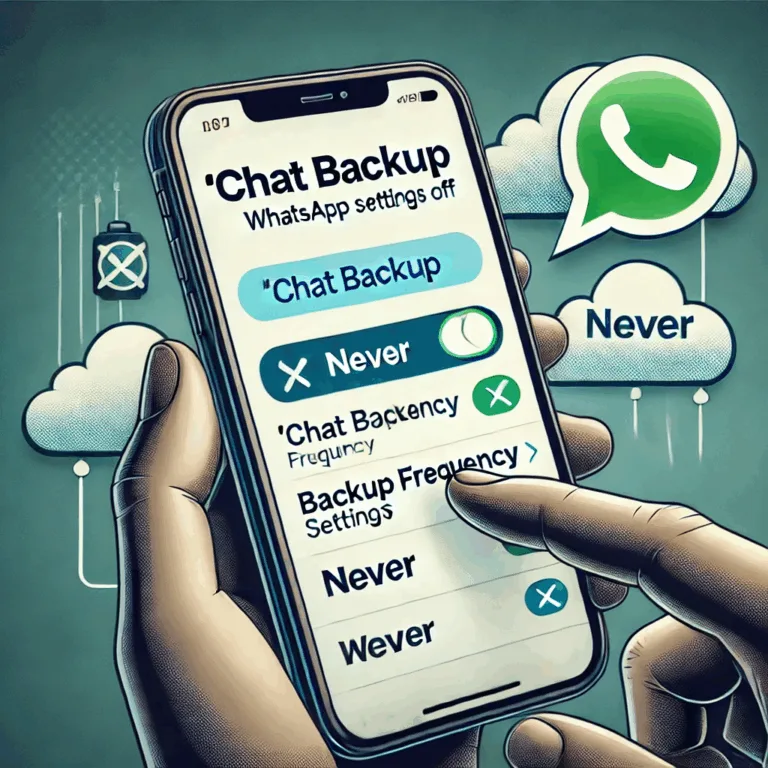
How to Stop WhatsApp Backup in 2026: Are you tired of constant cloud backups eating up your storage space? Worried about data privacy? You’re not alone. WhatsApp’s backup feature, while convenient, can sometimes feel like an unwanted digital shadow following your every message.
Okay, so you want to ditch those WhatsApp backups, huh? I get it. Sometimes you just need a little digital detox! Here’s the easiest way to pull the plug – no tech wizardry required. It’s annoying when WhatsApp is constantly backing stuff up, right? Like, I’m already paying for cloud storage, and now this? Anyway, here’s how you can finally make it stop! Super simple steps ahead…
Here’s a clear and user-friendly information table on how to stop WhatsApp backup across both Android and iOS platforms.
🛑 How to Stop WhatsApp Backup – Step-by-Step Guide
| Platform | Method | Steps |
|---|---|---|
| Android | ❌ Disable Google Drive Backup | 1. Open WhatsApp → Tap 3 dots → Settings 2. Go to Chats → Chat backup 3. Tap Back up to Google Drive → Select Never 4. Optionally, tap Google Account → Remove account |
| 🧹 Delete Existing Backups on Google Drive | 1. Go to Google Drive on browser 2. Click ⚙️ Settings → Manage Apps 3. Find WhatsApp → Click Options → Select Delete hidden app data | |
| iOS | ❌ Disable iCloud Backup | 1. Open Settings on iPhone 2. Tap on your name → iCloud → Show All 3. Scroll to WhatsApp → Turn toggle OFF |
| 🧹 Delete Existing Backups on iCloud | 1. Go to Settings → Tap your name → iCloud → Manage Account Storage 2. Select WhatsApp → Tap Delete Data |
📌 Notes:
- Turning off backup will stop WhatsApp from storing future chats on cloud storage.
- Deleting a backup will remove existing chat backups permanently.
- For privacy-conscious users, this can help keep data entirely local on the device.
Why Stop WhatsApp Backups as of 2026?

Have you ever found yourself running out of storage space because of endless WhatsApp backups? Or perhaps you’re concerned about data privacy, wondering where all your personal conversations and media are being stored? If so, you’re not alone.
While WhatsApp’s automatic backup feature is designed to be convenient—ensuring you never lose a chat—it can sometimes feel like an unwanted digital shadow, constantly tracking and saving every message, photo, and video you send. This not only clogs up your cloud storage but also raises important questions about privacy and control over your own data.
So, what can you do about it? Should you turn off backups completely, or is there a way to manage them more efficiently? Let’s explore the best strategies to take back control of your WhatsApp backups while ensuring your data remains secure and accessible when you need it.
Quick Overview of Backup Stopping Methods
- For iPhone Users: Disable iCloud sync
- For Android Users: Turn off Google Drive backup
- Universal Solutions: Network disconnection, app management
Step-by-Step Guide to Stop WhatsApp Backup
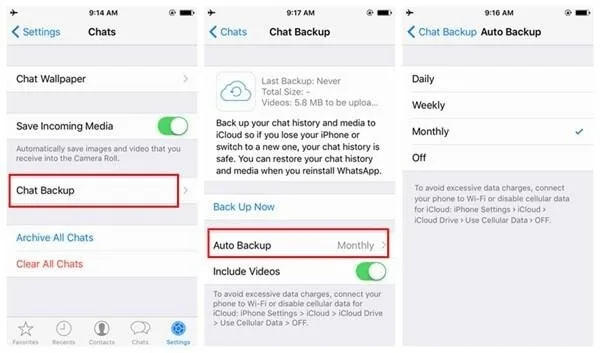
🍎 iPhone Backup Stoppers
1. Disable iCloud Sync
- Open iPhone Settings
- Tap on your Apple ID
- Navigate to iCloud
- Find WhatsApp and toggle off the sync option This method ensures WhatsApp won’t automatically back up to iCloud
2. Disable Auto Backup in WhatsApp
- Open WhatsApp
- Go to Settings > Chats
- Tap ‘Chat Backup’
- Set Backup Frequency to ‘Never’ This prevents new backups from being created automatically
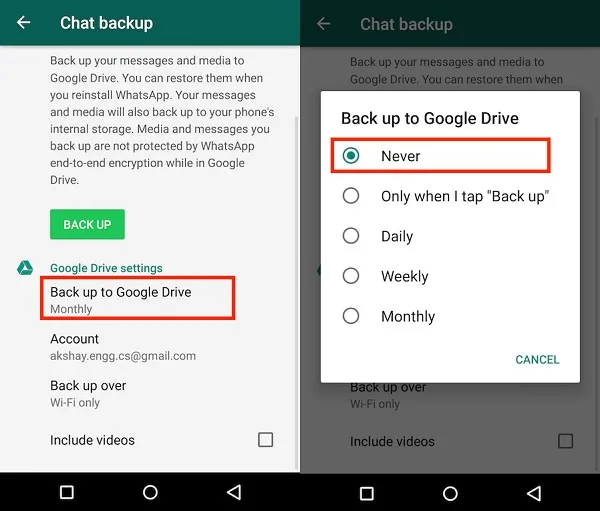
🤖 Android Backup Blockers
1. Stop Google Drive Sync
- Open WhatsApp
- Go to Settings > Chats > Chat Backup
- Set Backup to Google Drive frequency to ‘Never’ This specifically prevents WhatsApp from backing up to Google Drive
2. Disable Backup via Google Drive App
- Open Google Drive
- Tap ‘Backups’
- Find WhatsApp backup
- Select ‘Turn off Backup’ – An alternative method to stop cloud backups
🌐 Universal Backup Stopping Techniques
Network Disconnection Method
- Turn off Wi-Fi
- Disable cellular data
- Prevents WhatsApp from syncing backups This method works across different devices to interrupt backup processes
Important Considerations
⚠️ Backup Risks
- Stopping backups means potential data loss
- It is recommended to manually back up important chats periodically
- Consider alternative backup solutions like computer storage
💡 Pro Tips
- If storage is your concern, selectively back up
- Uncheck video backups to save space
- Use third-party backup tools for more control
FAQs related to Stop WhatsApp Backup
Q: Will deleting WhatsApp delete my backups?
Q: Can I stop an ongoing backup?
Final Thoughts
Controlling your WhatsApp backups is about finding the right balance between data security and privacy. Whether you’re an iPhone or Android user, these methods give you the power to manage your digital footprint.
Pro Tip: Always create manual backups of important conversations before disabling automatic backups.
Disclaimer: Backup settings may vary slightly depending on your specific device and WhatsApp version.