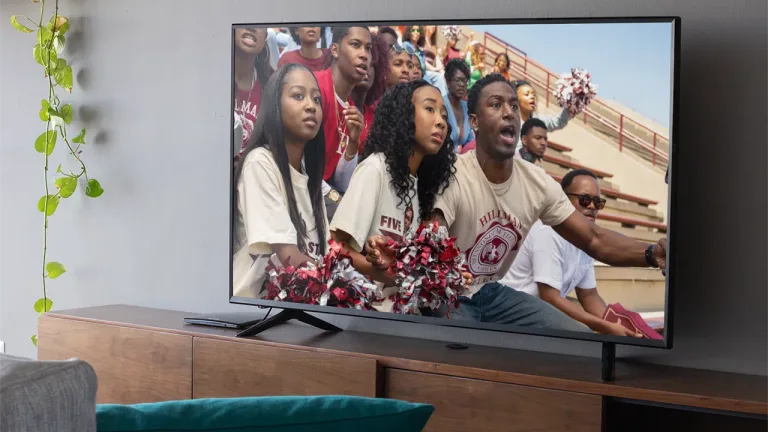
Ever started a big-budget drama and thought it looked oddly cheap, almost like a daytime soap? You’re not imagining it, and it’s probably not the show. Cinematographer Shawn Peters, known for the A Different World reboot and the documentary Summer of Soul, has a simple request for viewers: switch your TV to Movie or Filmmaker Mode and say no to motion smoothing.
Table of Contents
Netflix Settings Guide
| Setting | What to Do |
|---|---|
| Best option | Turn on Netflix Calibrated Mode (if your TV has it) |
| Next best | Choose Filmmaker Mode in picture settings |
| Fallback | Pick Movie or Cinema mode, then turn off motion smoothing |
| Avoid | Sports mode, Standard mode and gaming presets |
What Is the “Soap Opera Effect”?
The culprit is motion smoothing, also called motion interpolation, which is switched on by default on most modern TVs. It artificially adds extra frames to fast-moving scenes to reduce blur. That’s great for a football match, but it wrecks the cinematic 24-frames-per-second look that filmmakers carefully craft. The result is an image that feels unnaturally smooth, like a cheap studio production rather than a movie. You can read more about the technique in this motion interpolation overview.

Why Filmmakers Care So Much
Peters explained that the team worked hard to give their show a more natural, cinematic and immersive look. In his view, those subtle choices get destroyed when viewers watch in standard or gaming modes. He also noted that many TVs now ship with gaming-focused backlight and motion settings, and that even Movie mode may not fully fix things on sets built around gaming. Still, switching to Movie or Filmmaker Mode gives you at least a rough idea of what the crew intended on set and in colour grading.
Option 1: Netflix Calibrated Mode
If your TV supports it, this is the easiest fix. Introduced years ago on Sony TVs and since rolled out to other brands such as Panasonic, Netflix Calibrated Mode bypasses your TV’s internal processing so the picture mirrors the post-production monitors used by Netflix creators. It optimises colour and contrast and disables motion smoothing. You’ll usually find it in your TV’s picture settings while the Netflix app is open.
Option 2: Filmmaker Mode
Many newer TVs from LG, Samsung, Vizio and others include a dedicated Filmmaker Mode, backed by industry names such as Martin Scorsese and Tom Cruise. Select it in your picture settings and the TV strips away most of the artificial processing automatically.
Option 3: Switch Off Motion Smoothing Manually
No Filmmaker Mode? Choose Movie or Cinema, then head into advanced picture settings. The feature goes by different names depending on your brand. On LG, turn TruMotion off. On Samsung, switch off Auto Motion Plus or the Picture Clarity settings. On Sony, set Motionflow to off.
A Small Change With a Big Payoff
It takes less than a minute, and it can transform how your favourite series look. Share the tip with friends and family who might think their TV is just “like that.” For more streaming and tech tips, visit Techno Sports and explore technosports.co.in.
FAQs
Q1. How do I stop the soap opera effect on Netflix?
Turn on Netflix Calibrated Mode or Filmmaker Mode, or choose Movie mode and switch off motion smoothing.
Q2. What is motion smoothing called on LG, Samsung and Sony TVs?
It’s TruMotion on LG, Auto Motion Plus or Picture Clarity on Samsung, and Motionflow on Sony.